

Install the Shopify Collective: Supplier sales channel on an eligible store, connect a compatible retailer, share an active price list with workable costs and shipping, then verify payment and fulfillment on that connection. Installing the retailer app alone does not set up your supplier business.
This guide is for a brand or merchant supplying products to other Shopify stores. If you want to find other brands’ products to sell, start with the Collective-versus-dropshipping comparison.
If a connected retailer can’t import your towels, check that you assigned the price list to that retailer and set it to Active. When its first customer pays, check your supplier order for the retailer’s payment before you pack anything. The steps use a fictional two-piece tea-towel set. Shopify documentation checked October 27, 2026; no store connection, invitation or test order was performed for this guide.
01
Check eligibility and install the supplier channel
Start with Shopify’s current supplier requirements. Common requirements include an active plan, supported business location and store currency, activated Shopify Payments with active payouts, a matching payout currency, required tax setup, policy/trust checks and Shopify Network Intelligence.
Canada, the UK and the EU have additional tax-setup and registration checks. Canada’s GST/HST verification and the UK/EU VAT conditions are not interchangeable. Use the actual account checklist rather than inventing a registration or assuming the Manual Tax setup qualifies.
For a direct partnership, both stores need to be in the same supported country and use the same currency. That is a connection rule, not a statement that every customer must have a domestic delivery address.
Install the channel, then resolve the actual failed requirement
Follow Shopify’s supplier installation instructions: install Collective: Supplier, open its onboarding tasks, and review the eligibility checklist in its Settings. An active Shopify plan is required; Pause and Build and ordinary development-store shortcuts are not substitutes for an eligible selling store.
If the channel reports an incomplete requirement, identify that particular issue—payment activation, payout currency, tax or identity verification, for example—and complete the supported process. Do not repeatedly reinstall an app to solve an unsupported business location. Do not change the stated country to one where your business is not actually based.
Being discoverable to new retailers is another question. Shopify’s Discovery guidance requires the Shop sales channel and Shop merchant eligibility for discovery, and identifies countries with direct-invite-only access. A missing Discovery result and an invalid direct connection need different investigations.
02
Prepare one product you can fulfill for another store
Use one real product before sharing the entire catalogue. For the teaching example, imagine an original two-piece blue cotton tea-towel set, SKU TEA-BLU-2. The photographs, dimensions, material, care information, included quantity and rights to use the assets must be correct for an actual product. The example does not establish any of those facts for a real supplier item.
Confirm the source of saleable stock and the location that will fulfill orders. Make the same retail unit identifiable to the retailer and the packing team: one accepted order for the set should send two towels, not one towel or a wholesale case.
Publish the intended item to the channel
In Products, open the actual item. Shopify’s current product-publishing instructions use the adjustment control in the Publishing section: select the intended sales channel, confirm and save. Check availability for Collective: Supplier and the applicable market/catalogue. Collective price-list products must be included in your primary market.
Then verify the exact variants offered, actual quantity, stock behavior, weight and dispatch location. A product existing in your admin is not the same as a product available to the supplier channel and its price lists.
The Collective retailer-installation guidance also distinguishes operating both roles from resupplying another Collective supplier’s imported goods. Do not turn an imported Collective catalogue into your own onward Collective supply chain. Establish that these are products your supplier business can legitimately share and fulfill.
03
Connect one compatible retailer
Choose a retailer whose assortment and customers fit the product, then confirm its country/currency and eligibility. A connection is a commercial partnership; it is not evidence that the retailer will generate orders.
For a direct invitation, the current invitation workflow is:
- Open Collective: Supplier → Retailers → Invite retailer.
- Enter the intended retailer’s actual email, select the relevant price list or create the agreed list, and write a specific invitation.
- Send only after checking the proposed products and terms. Review the accepted connection in the Retailers area.
If you need to create the list from the invitation form, use the configuration in the next two sections before sending the offer. No invitation is being sent by this tutorial. For an incoming request, review the retailer under To review and accept or decline deliberately. Do not grant your full assortment to every request merely because it arrived through Shopify.
Connect the partner to the particular offer
A useful message explains the assortment, actual dispatch origin and handling time, expected retail unit, price-list terms and support contact. For the fictional towel pilot, the proposal would identify one two-towel blue set and a limited supported delivery route, rather than promise every color and country.
The result to verify is an eligible connection with the intended access. A retailer listed as connected may still have no active product list to import. Check that next rather than repeatedly asking the retailer to search Discovery.
04
Create a price list with a cost you can explain
A private pilot gives you control over which connected retailer receives the offer. A public list serves a different purpose: eligible retailers can instantly import its products. Shopify’s price-list documentation explains that access type cannot be changed after the list is saved, so decide that before creating it.
Example configuration: one private towel offer
In the supplier channel, open Price lists → Create price list. Use the actual relevant fields to set up the example below, then add the intended product and save. Keep the list in draft while reviewing shipping and terms; activate it only when the offer is ready for the assigned retailer.
| Pilot input | Fictional setting | Result to verify |
|---|---|---|
| List title | Cotton Towel Pilot | You can distinguish this offer from other lists |
| Access | Private; assign the intended connected retailer | The intended partner receives access, not every eligible retailer |
| Initial status | Draft | Products are not yet available for retailer import/sale through this list |
| Product | One original two-piece blue set, TEA-BLU-2 | The intended unit and variant appear |
| Supplier’s retail reference | $40 | This is the reference for the example’s cost calculation |
| Retailer margin | 35% | $14 retailer spread; $26 cost price |
| Shipping | Set in the next step | Verify the actual supported rate and destination |
Here the calculation is $40 × (1 − 0.35) = $26. The retailer margin is deducted from your retail reference; it is not a markup applied to your production cost. Check the resulting cost-price column rather than assuming the percentage represents what your supplier business keeps.

The $14 difference is not the retailer’s net profit. It still has its own selling, payment, promotion, support and overhead costs. A retailer’s own price changes or promotions do not automatically reduce your cost price; Shopify’s retailer product guidance explains that distinction.
Check the supplier’s side of the offer too
Suppose the pilot charges $6 for shipping. The amount due to the supplier is then $26 product + $6 shipping = $32, before applicable taxes or other adjustments. Suppose your actual goods cost $12, packing $2 and postage $6. That leaves $12 before other fees, remedies, labour, fixed costs and income taxes. All these dollar inputs are fictional, not a current rate or earnings forecast.
Collective connects the two businesses; it does not know whether your production and support costs make the price worthwhile. Price the actual retail unit, package and destination before sharing it more widely. Keep product cost, shipping collected and real carrier expenditure as separate lines.
When you later choose public access, note Shopify’s current 5% minimum retailer margin. That is a platform minimum, not evidence of an adequate commercial margin. Review overlapping lists deliberately rather than giving one partner conflicting offers unintentionally.
05
Set shipping before activating the offer
Open the list’s shipping configuration and choose a supported method for the relevant zone. The current supplier shipping guide distinguishes calculated rates, a flat rate, manual invoicing and a no-shipping option. Zone controls vary by store location; the US/Canada settings should not be assumed for every supported country.
| Choice | What to verify |
|---|---|
| Calculated rates | Actual profile rules produce a usable rate for this product and address |
| Flat rate, where supported | The fixed amount covers the route you are offering; public lists do not support this choice |
| Manual invoice | A real agreement covers payment outside Collective; the retailer’s default free checkout result has been addressed |
| No shipping to a zone | Unsupported addresses are prevented from buying that route |
For the fictional private US pilot, use $6 flat shipping only if that is the deliberately supported offer. Public lists use calculated shipping rather than the private-list flat-rate setting. A flat rate also does not provide the same checkout date estimates as calculated shipping.
Inspect what the retailer’s customer actually sees
Ask the retailer to check the towel set at a supported address, an unsupported address, and a mixed cart if relevant. Confirm the total, available service, processing/transit wording and expected parcels. If the example retailer uses the same $40 product price and passes through $6 shipping, checkout is $46 before tax; verify that result rather than assuming it.
The retailer’s connection policies can affect which rates and descriptions appear. Explain actual preparation time separately from transit and do not promise a delivery date solely because the rate is named Standard.
Manual invoicing deserves particular care: Collective can show free shipping by default even though you will invoice the retailer for postage. Resolve its customer-facing profile and your payment terms together. “Free” on that checkout is not a carrier quotation.
Once the assigned products, costs, shipping, access and partner terms have been checked, change the reviewed list to Active and have the retailer confirm the intended products are importable. Activation is a real release of commercial access, not merely a way to remove a draft label.
06
Decide what syncs and who checks changes
An imported listing is not a permanently identical copy of your product page. Cost price and inventory remain connected; retail-price and other detail behavior depends on the relevant settings and product policies. Read the current retailer product policies together with the actual connection.
For the pilot, ask the retailer to confirm the imported two-piece variant, current cost and available quantity. Then agree how each business handles a price, description, image or variant change. Do not assume correcting care information in your source store automatically corrects every retailer page.
Protect the actual stock and fulfillment connection
Review the supplier’s Continue selling when out of stock setting for the real product. If it permits continued sales, the retailer can still offer the item when your recorded stock is exhausted; a retailer cannot simply override that supplier setting. Agree a truthful replenishment promise or stop unsupported sales.
Treat a fulfillment-location change as a connection change to verify, not housekeeping. Shopify warns that changing the product inventory location can break inventory and order syncing. Check the actual location, quantity and new order route before relying on the new setup.
Removing products or price-list access can set the retailer’s available quantity to zero. Coordinate an intentional stop or update with the retailer and review existing orders. Do not repeatedly remove/re-add goods as an unexplained workaround, or duplicate an imported product to create an apparently clean listing and lose its connection.
Ask the retailer to confirm the cost and available quantity for the two-towel set. On the first agreed order, check that it reached the location that actually holds those towels. An app connection indicator is only one part of that evidence.
07
Separate customer payment from your supplier payment
The retailer takes the customer’s payment. The amount owed to you for the product and shipping is a separate movement. In the pilot, that is $26 plus $6, not the full customer checkout amount.
The current supplier payment documentation explains the automatic flow:
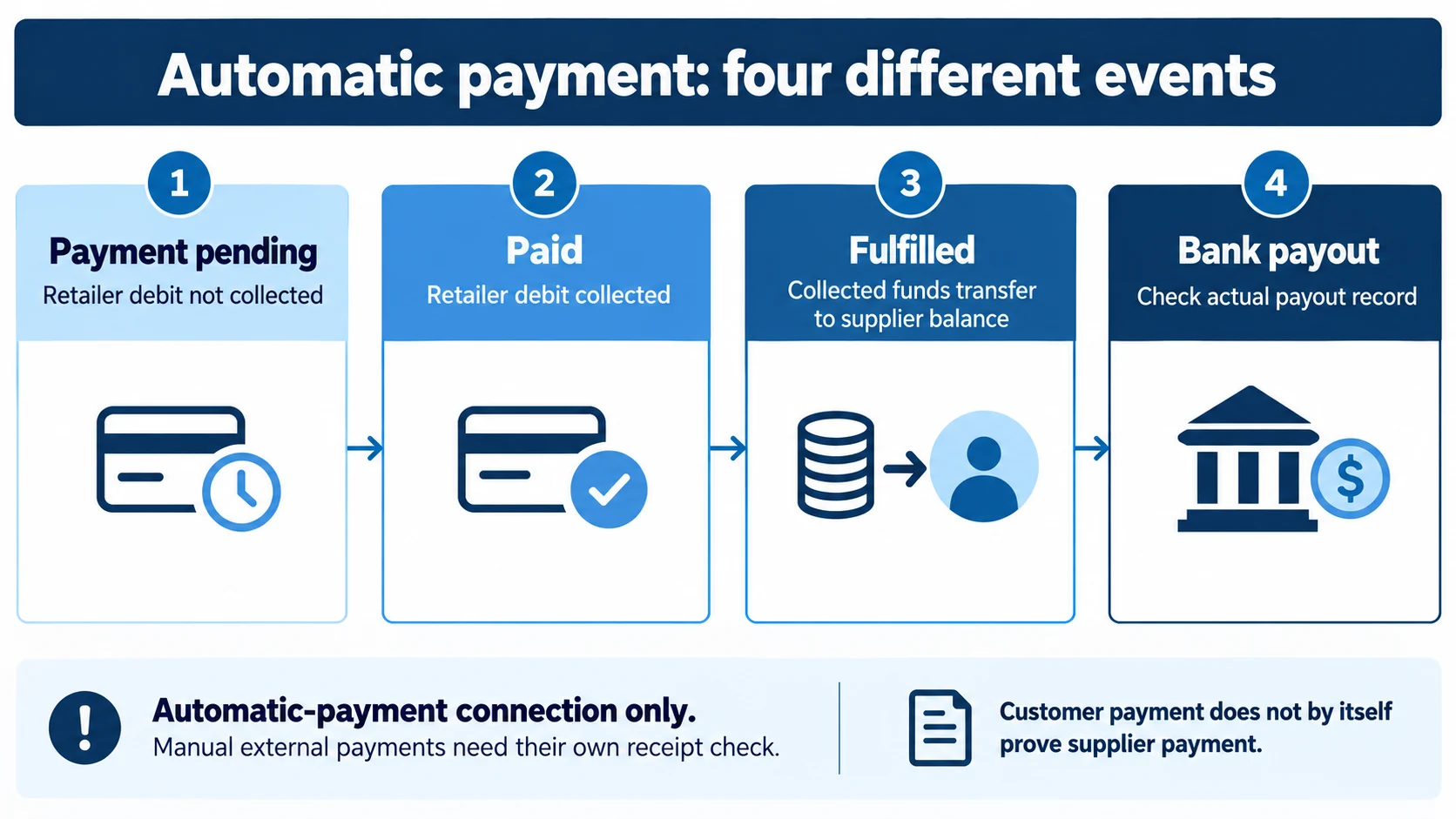
| Automatic-payment state | What it tells the supplier |
|---|---|
| Payment pending | The relevant amount has not been collected from the retailer’s Shopify Payments balance |
| Paid | It has been debited from that balance; this is not yet a bank payout to you |
| Order fulfilled | Collected funds can transfer to your Shopify Payments balance after fulfillment |
| Bank payout | Check the actual payout and transaction records; it is another event |
For an automatic-payment connection, do not dispatch an order still waiting for the retailer debit. A buyer using another payment method does not necessarily replenish that retailer’s Shopify Payments balance. The retailer payment guide explains that side of the transaction. Ask the retailer to resolve the funding/status issue rather than assume a screenshot of customer payment proves you have been paid.
Manual payments need their own receipt check
When automatic payments are off, Shopify documents the supplier order status as Payment pending. That technical label does not track your agreed external bank transfer or invoice payment. Agree and verify the actual payment reference, amount and release terms before dispatch; do not pretend the automatic-state table validates a manual receipt.
The supplier can turn automatic payments off for a connection, while the retailer controls turning them on. Coordinate the change rather than assuming either party can activate the whole arrangement unilaterally. Automatic-payment eligibility also has country, currency and Shopify Payments conditions for both parties.
Reconcile the amount after fulfillment
Use Collective: Supplier → Payments for the product/shipping breakdown. Shopify also documents Finance → Payouts → View transactions, filtered by Shopify Collective, for fulfilled-order payment transactions. Match the pilot’s actual order to its $26 product and $6 shipping assumption and investigate any tax or other adjustment.
Do not record a gross $32 collection as $32 profit. Compare the real production, packing, postage, fees and exception costs, and keep supplier credit, payout and customer refund events separate.
08
Run the first order through fulfillment and returns
Follow an authorized order with the connected retailer before inviting a large group of stores. Use the actual price list, product, destination and payment method. A development-store simulation that cannot meet Collective requirements is not equivalent to this order journey.
In Orders, filter the channel to Shopify Collective and save a useful view. The supplier fulfillment guide describes this route and identifies the retailer in the order details.
For the towel pilot, record the actual results:
| Check | Expected result for this fictional configuration |
|---|---|
| Product and quantity | The correct blue two-towel set, with the intended variant and retail unit |
| Source | The order is assigned to the location that holds and dispatches that set |
| Money | The actual connection’s payment condition is satisfied; product cost and shipping match the offer |
| Packing | Two correct towels and required product information; agreed packaging |
| Dispatch | Genuine carrier/tracking for the real shipment, not a placeholder added to release funds |
| Retailer/buyer view | Fulfillment and tracking reach the retailer, with the expected customer notification |
| Reconciliation | Product/shipping amounts, physical unit and payment records can be connected to the same order |
Collective fulfillment sends the customer shipping notification from the retailer’s store. Follow Shopify’s supplier community guidelines about genuine tracking and the retailer’s customer relationship: do not add your own promotional codes, marketing inserts or sales invoices to its customer parcel. Preserve the product information and legally required shipment documents relevant to the actual route.
Use the table to record what happens on your first agreed order. The towel order here is an example.
Set the return route on the actual retailer connection
Open the retailer’s connection details and read Policies. Shopify’s supplier policy guide distinguishes supplier-provided labels, retailer-provided labels with returns to the supplier, returns to the retailer’s own stock, and legacy handling outside Collective. They produce different work and notifications.
For a policy where you receive and inspect the towels:
- Find the existing return on the actual order. A policy-based request can create it automatically in your Shopify admin. Match the retailer, item, quantity and reason; do not create a second return merely because an email arrived.
- Supply the agreed label. If you are responsible, open the order’s return controls and create an eligible label or upload the prepared label. Shopify’s label-creation option is limited by country/location; an upload is a separate choice. Verify the receiving address and that the customer receives the label through the applicable workflow.
- Record receipt and inspection. Restock only the quantity actually suitable for resale. A returned parcel, a closed return and a money refund are separate results.
The retailer’s returns-policy documentation matters here: earlier accounts can retain legacy defaults. A third-party returns app can also own the customer refund trigger. Agree the actual settings with the retailer rather than assuming every connection uses today’s default automation.
Refund the supplier order, then verify both money movements
For a supported order with a refund due, Shopify’s dedicated refund instructions use Orders → the order → Refund. Review the item quantity, any shipping refund, the restocking choice and amount before confirming. The general refund guide explains these controls; initiating a refund is a real money action that cannot simply be reversed.
There is a wording conflict in Shopify’s Collective fulfillment page: an earlier line says orders cannot be refunded, while its dedicated refund section describes supplier refunds. The detailed returns-policy pages also describe them. Use the documented policy-based route and the controls actually available for that order. If Refund is absent or the state is unsupported, resolve that order with Shopify Support; do not cancel a fulfilled order to force a refund. This guide has not tested a live account’s controls.
| Movement to verify | Evidence that closes that part of the case |
|---|---|
| Your supplier business → retailer | The agreed supplier credit, actual debit/repayment reference and retailer receipt |
| Retailer → customer | The buyer-facing refund transaction and amount in the retailer’s order/payment record |
The two amounts need not be identical. In the fictional towel offer, the supplier product cost was $26 and the retail product price was $40. Refunding the product on each side concerns those different prices; shipping, tax and permitted fees must be handled according to the actual sale and agreement. Do not send the customer’s full retail price merely because that was the original checkout total.
Automatic payments, manual repayment and a missing balance
Shopify’s supplier payment guide says Collective retries collecting supplier funds for retailer refunds when the balance is insufficient. A refund request or received parcel therefore does not prove the retailer already has the money.
- Automatic payments active on both sides: verify the supplier-to-retailer transfer. Then have the retailer inspect its Supplier refunds policy: it may refund the customer automatically, leave the action to a third-party trigger, or require a manual customer refund. Check the actual transaction before anyone clicks again.
- Automatic payments inactive: send the agreed repayment through the agreed external method and give the retailer its reference. Reconcile receipt separately from the customer’s refund; a note saying “refunded” is not proof of either transfer.
- Automatic refund still awaiting funds: resolve the balance/status with the retailer and Shopify. Do not also send an uncoordinated manual payment while retries continue. A separate legacy return-label fee may need settlement outside Collective.
Do not cancel an already refunded Collective order. Shopify warns that this can trigger payment reversals. For an unfulfilled order that genuinely needs cancellation, use the supported cancellation request and verify its result; that is a different case from receiving and refunding returned towels.
Do not manufacture a return to test the workflow. On an authorized case, retain the return result, retailer receipt and customer refund result before calling it closed.
Diagnose the failed state instead of reinstalling everything
| Symptom | First check and response |
|---|---|
| Retailer is connected but cannot import the set | Check actual eligibility, product/channel availability, active list and assigned access |
| Private pilot’s shipping is wrong | Check the actual list/zone and retailer policy; then inspect checkout at the affected address |
| Manual-invoice order shows free shipping | Agree the retailer’s customer rate and external shipping payment before taking more orders |
| Customer paid but automatic supplier order is pending | Check retailer balance/eligibility and the actual debit; do not ship on customer-payment evidence alone |
| Stock or order routes to the wrong location | Pause the affected offer, verify the location/connection and rerun that order path |
| Return is received but the case remains open | Check supplier adjustment, retailer receipt and the separate customer refund/remedy |
Expand only after these states work for the actual partner. A smaller partnership with correct costs, parcels and support is a more useful starting point than many connected stores with no importable or supportable offer.
If the unresolved job is producing, inspecting, packing or dispatching stock in China, send AIDrop the product and operating requirements. That is separate from Shopify deciding account eligibility or a retailer agreeing your Collective terms.
09
Questions before expanding your supplier partnerships
Is Shopify Collective free for suppliers?
Shopify describes Collective as free for eligible stores. Your Shopify plan, production, packaging, shipping, payment-related charges, returns and other operating costs still exist. Use the complete supplier-side calculation rather than calling the entire collection profit.
Can one store be a supplier and a retailer?
Yes, with the appropriate supplier channel and retailer app. Keep the two roles and their products clear. Being both does not permit republishing products imported from another Collective supplier as your own onward Collective supply.
Why can a retailer not find my brand in Discovery?
Check discovery eligibility, Shop requirements, discoverability settings and country availability. A valid direct invitation and public discovery are different routes. Also check whether the intended product/list is actually available rather than assuming a brand search proves its access.
Can I connect with a retailer in another country?
The current direct-connection rules require the stores to share a supported country and currency. International customer shipping is a different matter and depends on the actual supplier route and configuration. Do not confuse store compatibility with the customer’s delivery destination.
Must I share a public price list?
No. Private access can suit a controlled partnership. Public access can suit deliberate instant import by eligible retailers, with its own minimum-margin and shipping conditions. Choose the intended access before saving the list; wider access does not guarantee demand.
Can I assume bundles, subscriptions and custom fields transfer?
No. Check Collective’s current compatibility requirements and the exact product policy. Do not offer an unsupported subscription or bundle simply because it works on your own store. Verify the actual item, data and order route the retailer imports.
Sources and scope
Linked Shopify sources support the identified current controls and workflows. All towel specifications, prices, margins and proposed checks are illustrative. No live Shopify configuration, invitation, retailer approval, customer order, payout or test result is claimed.
Shopify Dropshipping: Build a Store That Can Take and Deliver Orders
Build a Shopify dropshipping store, connect suppliers, configure payments and shipping, and test checkout, order handoff and

How to Dropship on Shopify: A Practical End-to-End Workflow
Set up Shopify dropshipping from supplier selection to checkout, shipping, test orders and launch. Verify the complete

Shopify Dropshipping Apps: Choose the Automation You Need
Compare DSers, AutoDS, Syncee, CJ and Zendrop by imports, price updates, ordering and tracking. Check plan limits