
Yes, you can run a dropshipping store on PrestaShop. It can display products, take customer payments and manage orders while a supplier holds and ships the goods. But putting a supplier’s name in a PrestaShop product record does not place an order with that supplier. To make the model work, you need a compatible module that performs the handoff you require, or a reliable manual process. Then you need to see one paid customer order become an accepted, funded supplier order with real tracking. (PrestaShop’s model overview; supplier association help)
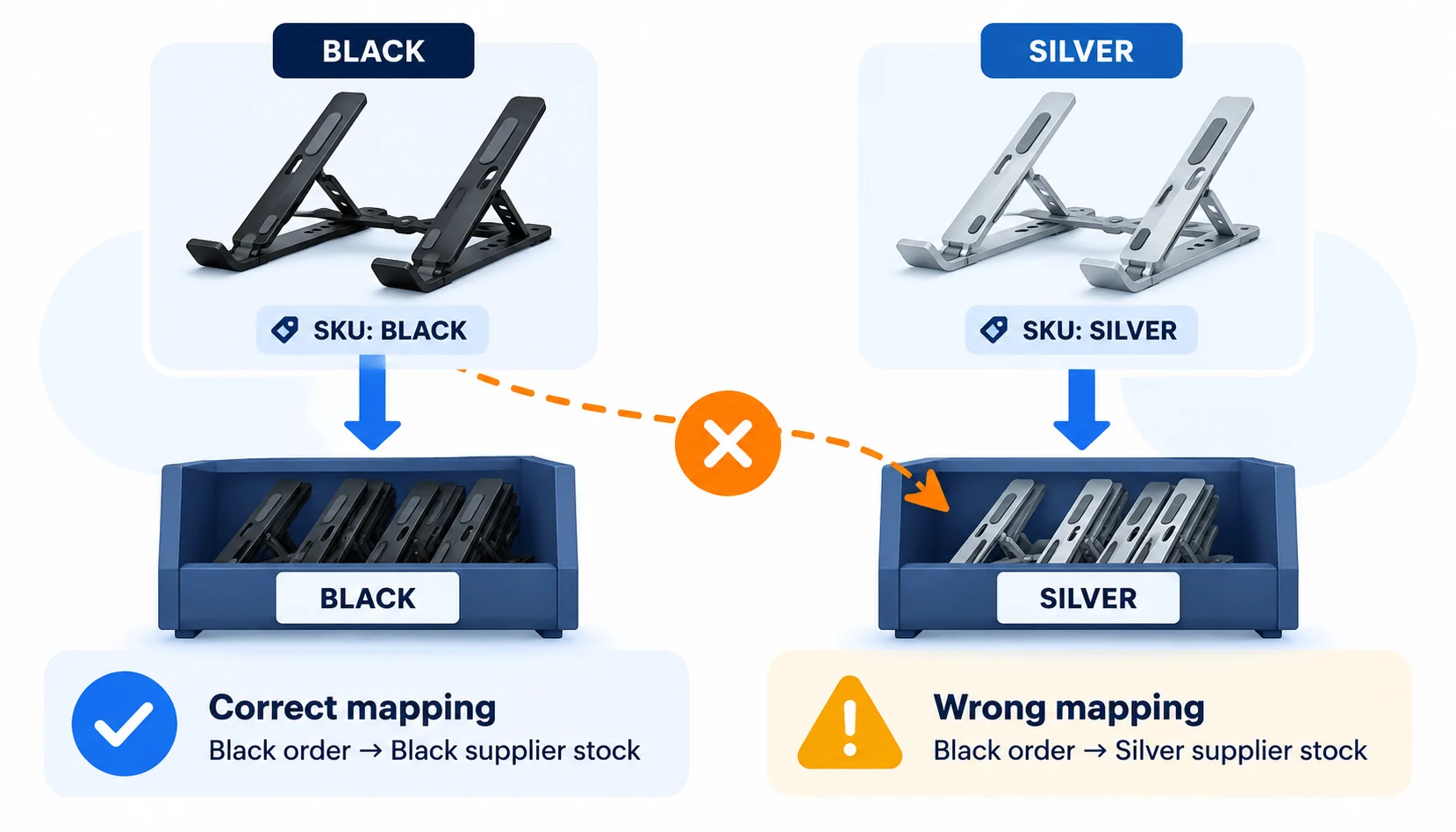
That distinction matters more than the number of products you can import. A customer can buy a black folding laptop stand from your site while the supplier receives nothing, receives the silver variant, or has already run out. The customer still sees your store as the seller. Start with one item and prove the path before you give a feed thousands of listings.
If you are choosing among store systems, our dropshipping platform comparison covers the wider decision. Here we will stay with PrestaShop: what the shop records, what a module may do, and what you must check yourself.
01
Pick a supplier handoff you can actually operate
PrestaShop is flexible because modules can extend it. Flexibility also means two stores called “PrestaShop dropshipping” may have very different order processes. One may send a supplier an email; another may connect to a provider account and update stock; a third may require someone to copy each order into a supplier portal. Do not buy a module from the word automation alone. Ask exactly which event it handles.
| Route | What you arrange | Suitable when | First failure to test |
|---|---|---|---|
| Manual supplier relay | Send the paid SKU, variant, address and method to a supplier; pay and track the order | Small catalog and a supplier you already know | Order was paid on your site but no one sent it to the supplier |
| Order-email or file workflow | Configure a module or feed to deliver the right order lines to the right supplier | Repeatable catalog with a supplier that accepts that format | Email/file arrived, but supplier did not accept or fund the order |
| Provider integration | Connect a version-compatible module and provider account, map products, stock, orders and tracking | Enough volume to justify the app, maintenance and testing | Product import works but supplier purchase, variant or tracking does not |
On a phone, swipe the table sideways to compare every column.
The old PrestaShop module overview describes historical supplier-email and product-import approaches. It was published years ago; the named modules are not a current shortlist. You must check a present Marketplace product page and the developer’s documentation for your exact store version and the tasks you need. PrestaShop’s current Marketplace guidance specifically advises checking compatibility, reviews, support and the developer’s response.
Acceptance matters more than the channel
An email can be a valid handoff if a person at the supplier accepts it and you receive confirmation. It is not the same as an API order with stock reservation and tracking returned. Likewise, a catalog import only puts items on your site. It does not prove the supplier has the same stock or that you can pay for the exact item after checkout.
Ask the module developer one concrete question: “When a customer buys the black stand, what proves the supplier has accepted that exact SKU, and how does its tracking number return to this PrestaShop order?” If the answer stops at “products sync,” the order workflow is still unresolved.
02
Check the module against your store before paying for it
Open your PrestaShop back office and note the store version, including its patch level. PrestaShop’s compatibility guidance says to check both the module version and the compatible PrestaShop versions, including updates and patches. It also recommends testing in a staging environment. That is a stronger check than a screenshot saying “PrestaShop 8 supported” when your store has a specific patch or custom theme.
Ask the developer about the complete order path
For a supplier module, read its current description and support terms with the actual order path in mind. Can it map a PrestaShop variant reference to the supplier’s SKU? Does it update stock per variant? At which paid order status does it send the supplier order? Is the supplier purchase automatic, or must you approve and pay it? Does tracking come back? If the connection times out, can it show whether the supplier already accepted the order before anyone retries? A module that answers only the import question is simply insufficient if you expected full fulfillment.
Use PrestaShop’s documented installation route for the chosen version. Configure provider credentials, event triggers and exception notifications before a live buyer depends on the connection.
Install the matching package, then reopen its settings
Use the module and store version you actually chose, not a name from the historical overview.
Install through the supported route
For a Marketplace purchase, connect the appropriate account in the back office and use Modules → Marketplace → Install. For a ZIP, choose the download for your store version, then upload it in Module Manager and open its configuration.
Check the installation before traffic
Reopen its settings and confirm the intended supplier account and order trigger. Test the same ZIP in your test environment before production; PrestaShop’s guide associates a purchased module license with the production URL, not the staging URL. Keep the manual fallback below.
These are documented setup checks. No module was installed or proved compatible by this article.
Assign the failed-order owner
Keep a manual fallback even if the connection passes. A supplier API or stock feed can fail at a bad time. Decide who sees the failed handoff, how quickly that person responds, and whether they can still place an order without sending the customer a misleading “shipped” message.
03
Map the actual variant, not just the product name
The black and silver laptop stands may look like one product page, but they are different stock decisions. The supplier might call black LS-BK and silver LS-SV; your store might use its own references. Make a small mapping record: PrestaShop product and variant reference, supplier SKU, supplier stock source and the last successful update. A product photo and title are not reliable identifiers once variants, bundles or replacement suppliers enter the picture.
Supplier association does not buy the stand
PrestaShop lets you associate a supplier with a product in the product’s Options tab. Its own help explains that this helps manage or sort the catalog. It does not say that checking the supplier box buys goods or alerts the supplier. (PrestaShop supplier association)
Quantity and backorder behavior are separate
Stock is another separate setting. PrestaShop’s stock help says quantities for variations are managed per variation. It lets a store refuse out-of-stock orders, or accept them as presales. If a feed keeps showing ten black stands after the supplier has none, the system may continue selling an impossible promise. If you intentionally allow out-of-stock orders, the page and checkout need a delivery promise you can actually meet; changing a setting does not make stock appear.
A back-office count alone does not prove the buyer sees the right availability. PrestaShop’s stock help notes theme/customization exceptions to variation-label updates. Check the actual storefront below.
Check black and silver as two stock records
Choose a test product or staging environment so this check does not create a false live stock promise.
Set the actual variation quantities
Open Catalog → Products and the stand. Use its Variations stock controls for black and silver separately. Use the quantity/out-of-stock behavior appropriate to that product; the reviewed help distinguishes simple-product Quantities from variation stock.
Inspect the storefront result
When black has no usable stock and silver does, switch between them on the product page. Check the label and whether checkout accepts the selected variant. If it stays stale, inspect the theme/module change handler; do not raise the stock number merely to hide a display problem.
This tests the store’s behavior. Outside-supplier availability and allocation still need their own confirmation.
Prove one variant, not 500 imports
The useful result is not “the module imported 500 products.” It is “the black SKU shown for sale can be bought from this supplier today, and the order that arrives at the supplier will request black.”
04
Make the checkout carrier match a real delivery route
The customer chooses a delivery option in your PrestaShop checkout. Your supplier will choose or provide an actual carrier service. Those may have different names and costs. PrestaShop’s carrier setup lets you set the customer-facing delivery time, destinations, price or weight ranges and tracking URL. A carrier can disappear from checkout when a destination or range is not supported.
Quote the selected variant and destination
Get a route quote for one intended destination before configuring checkout. It must cover the selected black/silver variant, supplier handling plus transit and the amount the customer pays. PrestaShop’s model overview notes that source location and item fragility affect cost.
Keep demonstration carriers out of checkout
Do not leave a demonstration carrier active in production. PrestaShop warns that its default example carriers are not intended for live online selling. Build a real zone and rate from the route you have, then test a destination outside that zone too. It is better for checkout to refuse an unsupported destination than to accept a paid order nobody can send. (PrestaShop carrier preferences)
Save a carrier with a route you can support
The current carrier guide describes four setup stages. Use your supplier’s actual service and quote.
Enter the service and supported ranges
Open Shipping → Carriers → Create carrier. Enter the name, delivery wording and tracking URL. In shipping costs, choose the intended price/weight basis, supported zones and quoted ranges; use Disable outside ranges you cannot serve rather than silently using the highest tier.
Finish, reopen and test
Review size/weight/group availability and the summary, then enable only the intended live option and Finish. Reopen it. Test the stand at an eligible address and at an intentionally unsupported address; compare the shown charge with the supplier quote and keep demonstration carriers disabled.
A checkout delivery-time label must account for the real handling and transit arrangement. Saving a carrier does not prove a parcel has been dispatched.
Check a mixed cart’s two bills
If you add a second supplier later, repeat the math on a mixed cart. One customer checkout may split into two supplier parcels and two supplier bills. Your checkout’s single delivery line is not proof that the second parcel is free.
05
Run one paid-order rehearsal all the way through
A real order record ties the configuration together. PrestaShop’s order view shows product lines, customer, delivery charge, payment and status, carrier and returns information. The supplier’s record exists outside those fields unless a specific module provides it. You need to reconcile the two.
Open the order and match it to one supplier purchase
In PrestaShop, open Orders → Orders, find the relevant reference and open its row or View icon. Use the payment, product, carrier and status details to check the external supplier record.
- For fictional order PS104, verify the paid line is one black stand and maps to supplier SKU LS-BK.
- Save its captured payment reference and the supplier acceptance reference, such as fictional SUP902, together. Supplier funding is a separate check.
- If the send request timed out, ask whether SUP902 exists before retrying. One buyer line should not create two purchases.
- After dispatch, match the actual carrier number and first acceptance event; an admin status changed by hand is not dispatch evidence.
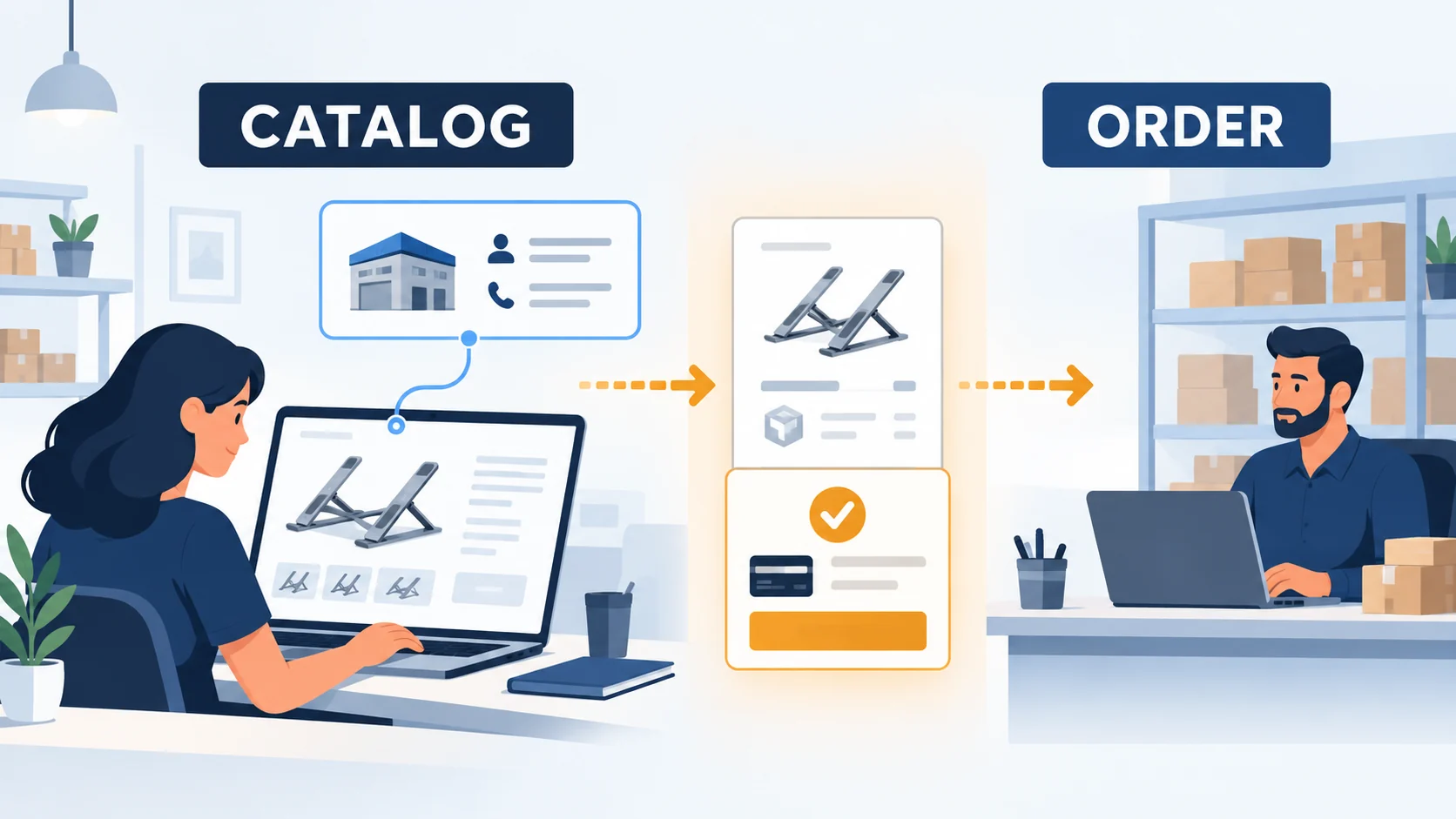
Use a controlled order for the black stand at a destination your supplier accepts. Do not record only “test passed.” Write down which of these facts you actually observed:
Product
Customer order says black; PrestaShop reference maps to supplier’s black SKU — Correct the variant mapping before more orders
Stock
Supplier or module feed has a recent black-stock confirmation — Stop selling or disclose a genuine backorder; do not invent availability
Payment
Customer payment was captured or valid under your configured payment method — Do not fund a supplier order based on an unpaid or failed order
Supplier handoff
Supplier received and accepted the exact quantity, address and SKU — Investigate the module trigger or send the order manually with an audit trail
Supplier funding
You know the actual item and delivery charge and have paid/authorized the supplier — Do not call an emailed order “in fulfillment” if no one has paid it
Shipment
Supplier confirms carrier handoff and gives a usable tracking number — Keep the customer informed without claiming dispatch early
After-sale owner
A person can coordinate a delay, damage, cancellation or refund — Assign the owner before traffic reaches the page
Run a paid test or an approved sandbox equivalent in your own installation and keep the exact order and supplier receipts. A dry run where a developer changes an order status by hand can prove the theme displays a label; it cannot prove a supplier received the purchase.
An order can exist before payment
Watch the payment trigger carefully. Order created is not always payment accepted. PrestaShop Checkout, for example, distinguishes Awaiting payment, Payment accepted and Payment Error; a bank-transfer order can remain pending until the merchant records receipt and changes its status. A supplier module that sends the black stand on the first “order created” signal could buy stock for a customer whose payment later fails. Ask the developer which payment state starts supplier work, and test it with your own processor. (PrestaShop Checkout transaction statuses; bank-transfer status)
Check acceptance before a timeout retry
The reverse failure matters too. Imagine the store sends one paid black-stand order, but the connection times out before it displays a supplier confirmation. You cannot tell from the timeout whether the supplier received nothing or received the order and your store missed the reply. Pressing “send again” without checking could buy two stands for one customer. Match the PrestaShop order and line reference to a supplier acceptance reference first; if none exists, retry through a process that records the same store order reference and flags duplicates. This is a requirement to check in the module or manual procedure, not a built-in guarantee from PrestaShop.
06
What to do when the handoff breaks
If the black stand is sold but the supplier never received it, pause the listing, check the module log and trigger, and manually contact the supplier if that is within your agreed process. Tell the customer an accurate status; do not mark it shipped to make the back office look tidy. If the supplier sends silver instead, resolve the variant mismatch with the buyer before dispatch. If stock disappears, offer a truthful new timing or a refund rather than silently converting a sale to an indefinite preorder.
Refund the actual payment, not a status label
PrestaShop’s order screen supports customer messages, returns, refunds and status changes. The exact refund action depends on the merchant’s payment module and whether funds were captured. Keep the supplier recovery process separate: refunding a customer in PrestaShop does not by itself cancel an external supplier purchase. (PrestaShop order management)
Open the buyer’s actual tracking link
When tracking finally arrives, enter the actual carrier and number, then open the customer-facing link. A configured tracking URL with no genuine carrier event is still just a URL. Keep the order message plain: what shipped, which parcel it is, and what the buyer should do if the carrier misses the expected window.
07
When PrestaShop makes sense
PrestaShop can work well if you want control of a self-hosted store, can maintain modules and have a supplier route you can document and test. It is a poor shortcut if you expect the core product page or a supplier field to place purchases automatically. The first module you evaluate should earn its place by getting one exact paid SKU to the supplier and back as a trackable shipment.
A manual route can suit a small catalog
For a small catalog, manual handoff may be less risky than an untested integration. For repeat volume, invest in a module only after you confirm exact version compatibility, stock and variant mapping, supplier acceptance, payment trigger, tracking and exception support. If any of those fails, pause the product rather than using more listings to hide the gap.
If your source is in China and you need help defining the supplier-side work—product checks, packing, order release and tracking handoff—tell AIDrop Agent what item and destination you are planning. We can discuss that operating process. We are not claiming a native PrestaShop module or a universal quote.
Questions before taking a PrestaShop order
Do I need a supplier module to start?
Not necessarily. A small catalog can use a documented manual handoff if you can accept, fund and track every supplier order. A module is useful only when its exact order path works for your store and supplier.
Does the product’s Supplier field send an order?
No. The reviewed association helps organize the catalog and inventory. You still need an actual supplier handoff and acceptance record.
Should I retry when the supplier request times out?
First check the supplier order and charge. The purchase may have succeeded before the reply failed; a second send could buy the same black stand twice.
Does a paid customer order mean the supplier is funded?
No. Match the captured customer payment to the exact supplier purchase and its separate funding record. An unpaid bank-transfer order or a manually changed status does not prove that payment.

Etsy Dropshipping: What You Can Sell and How to Fulfill It
Check Etsy dropshipping rules, eligible supplies, production partners, listing details and the real costs of fulfilling an
Shopify vs WooCommerce for Dropshipping: Which Fits Your Team?
Compare Shopify and WooCommerce for dropshipping: hosting, maintenance, supplier integrations, operating costs, and the best fit for

Shopify vs Amazon for Dropshipping: Choose Your Selling Channel
Compare Shopify and Amazon for dropshipping by customer acquisition, fees, supplier requirements, brand control, and the selling