

CSV dropshipping uses spreadsheet-style files to move product, inventory or order information between your store and a supplier. The useful question is what the particular file should do. Importing a product can create a listing; it does not buy the item or ask the supplier to dispatch it.
Start with a tiny case: one mug, two colors and two supplier codes. First make the listing correct. Then update stock deliberately. When someone buys, send the purchased variant through the supplier’s separate order process. Following those three jobs makes errors much easier to find.
The mug and records below are fictional teaching examples, not a live catalog or a Shopify import we performed. For the broader stock process, see the inventory-management guide.
01
Choose the file for the job
CSV means comma-separated values. The extension tells a system how values are arranged, not what business action to take. Two files ending in .csv can require entirely different columns.
| Your task | The file to obtain | The result to inspect |
|---|---|---|
| Add or edit listings | The store’s product template | Product, variants, prices and publication state |
| Change available quantities | The store’s inventory template | The intended variant and location quantity |
| Ask a supplier to fulfill an order | That supplier’s order template | An accepted purchase for the right items and destination |
Shopify has separate documentation for product CSVs, inventory CSVs and order exports. A supplier’s purchase template is another receiver’s format.
Write the task above the working file: “Import one new draft product into Shopify,” for example. Then download the current sample or an export from that receiver. Renaming a supplier price list does not turn it into a Shopify product file.
02
Keep one product and two supplier variants connected
Our sample mug comes in Navy and Sand. The supplier picks Navy using code 00127 and Sand using 00128. The store uses more readable SKUs.
| Store color | Store SKU | Supplier pick code |
|---|---|---|
| Navy | MUG-NAVY | 00127 |
| Sand | MUG-SAND | 00128 |
The product handle groups the colors on one product page. The option value tells the buyer which color they selected. The SKU and supplier code let you follow that selection into the supplier’s system. These identifiers have different jobs, so preserve the mapping even when the names look obvious.
Treat supplier codes as text. A spreadsheet can turn 00127 into the number 127. Open the saved CSV as text and inspect the value; a spreadsheet cell that merely displays five digits is not proof the export kept them.
Also establish what each imported value means. Is the price in dollars or another currency? Does one purchased unit mean one mug or a carton? Does “24 available” mean unreserved stock you can actually sell? Resolve those meanings before copying the values into your store. The SKU-mapping guide covers keeping the relationship intact when a supplier changes a code.
03
Build the two-row draft file
Use one new product for the first import. Shopify’s current format includes headers such as URL handle, Title, SKU and Price. Older compatible templates can have different names. Use one supported format consistently rather than mixing header generations.
Here is what the two records say before you look at the raw CSV:
Navy record
- URL handle:
sample-mug; title: Sample mug. - Option: Color → Navy; SKU:
MUG-NAVY. - Price: 18.00; status: draft.
- Published on online store: false.
Sand record
- URL handle:
sample-mug; title: Sample mug. - Option: Color → Sand; SKU:
MUG-SAND. - Price: 18.00; status: draft.
- Published on online store: false.
Both rows share a handle. Their color and SKU differ. The raw input keeps the exact option-field names as well:
Show the raw CSV to copy
URL handle,Title,Option1 name,Option1 value,SKU,Price,Status,Published on online store
sample-mug,Sample mug,Color,Navy,MUG-NAVY,18.00,draft,false
sample-mug,Sample mug,Color,Sand,MUG-SAND,18.00,draft,false
Expected result: one draft product, two color variants, two distinct SKUs and a price of 18.00 on each. It should not be published to the online store. This example does not set inventory, supply product photographs or connect a supplier.

This file is for creating the teaching product. For changes to existing products, work from an export and decide which fields you intend to update. Do not treat this small example as a safe overwrite file for a live catalog.
04
Import the file and inspect the product
Shopify’s product-import instructions describe the current path: Products → Import → Add file → Upload and continue → Review → Import products. Review the preview before starting; an import already in progress cannot be canceled.
For this new draft example, inspect the result in the product editor:
- Find Sample mug and confirm it is one product.
- Select Navy, then Sand. Read each SKU and price.
- Confirm Draft status and that the online-store publication setting remains off.
- Compare each variant with the supplier mapping saved above.
If the import creates two products, inspect the handles. If both colors point to the same SKU, repair the affected mapping before accepting orders. The useful test is the product you can now select, not just a successful-upload message.
Updating existing products needs a narrower file
An included blank cell and an omitted column can have different effects. Under Shopify’s overwrite behavior, an included optional field left blank can clear existing data; an omitted field can leave it unchanged. Read the current field rules for the change you are making.
Export the affected product first. Keep a recovery copy, retain the fields needed to identify it and include the updates you actually intend. Changing option names or values can also change variant identity and disrupt a supplier or app mapping. Inspect that relationship after the update, before sending another customer order.
05
Update inventory without replaying an old snapshot
Inventory files describe quantities at a location and a particular moment. A physically correct count can still be wrong to import later if sales or dispatches happened in between.
Shopify’s inventory documentation distinguishes exported current quantities from the new quantities you intend to set. For a deliberate count correction, suppose the exported current on-hand quantity is 10 but a fresh count finds 8. Keep the exported current value at 10 and enter 8 as the new quantity, following the current template. The difference now has a reason: the count correction.
Now consider a different situation. You exported 10, then two units were dispatched and the store correctly moved to 8. Uploading the old figure of 10 would put those dispatched units back on sale. Re-export after the movement and reconcile against the fresh state. Do not rewrite the old current field just to force the file through.
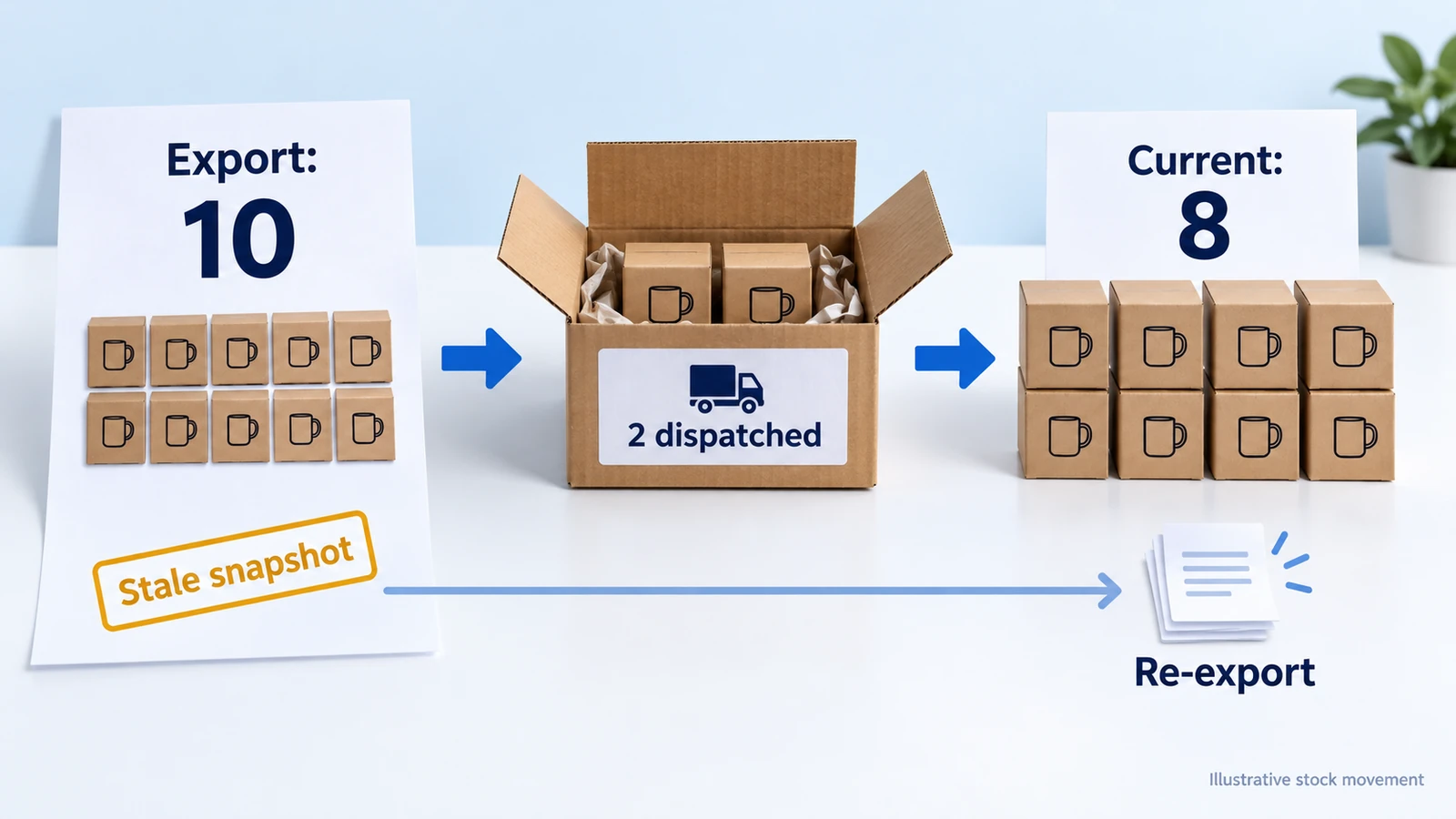
Check the location as well as the product. Eight units in a supplier’s general warehouse do not necessarily mean eight units reserved for your store. Agree who updates the available quantity, how reservations are handled and how quickly the next file arrives.
If stock keeps reappearing after imports, inspect the last file’s timestamp and the process that generated it. The inventory-feed error guide covers that recurring problem. Repeating the same stale upload will not fix it.
06
Send the order using the supplier template
Suppose a buyer orders one Navy mug. Your order record needs to carry MUG-NAVY through to supplier code 00127, with the quantity, destination and agreed shipping service. The product file that created the listing does not do this work.
Ask the supplier for its current order template and required fields. For example, Yakkyofy publishes separate Excel/CSV order-import instructions. Its supported format is not a universal template for other suppliers.
Keep a small internal record that joins the reply to the original customer purchase:
| Your record | Why it matters |
|---|---|
| Store order and line reference | Distinguishes the Navy line from another item in the basket |
| Store SKU and supplier code | Identifies the exact variant to pick |
| Quantity, destination and shipping service | Describes the requested fulfillment work |
| Supplier purchase reference | Lets you find the purchase before resending anything |
| Acceptance, payment and shipment state | Shows how far the request has actually progressed |
This is a proposed internal record, not a vendor upload schema. Transfer the customer information the authorized supplier needs through the agreed channel.
After sending the file, find the accepted supplier purchase and compare its variant, quantity and destination. Confirm the funding step required by that provider, then match the shipment back to the store order. If an upload times out, search for the purchase before sending it again; otherwise one buyer order can become two paid purchases.
07
Fix the failure before importing again
A failed import is easier to repair when you keep the original file and the receiver’s actual error. Work on the affected rows rather than sending the whole old catalog again.
| Symptom | Inspect and repair |
|---|---|
| Supplier cannot find code 127 | Restore the actual text code 00127 and check the exported file |
| Columns shift after a comma | Quote the value correctly in the receiver’s format |
| Two colors become two products | Compare the handles and option fields |
| Existing description disappears | Inspect included blank fields and overwrite settings; restore from the recovery copy |
| Stock changes at another location | Match the intended location and quantity fields |
| Supplier upload result is unclear | Find the purchase reference and its state before attempting a resend |
For Shopify parser errors, use its CSV troubleshooting reference. Once corrected, repeat the small test and inspect the same product, variant or order result. A valid file format cannot repair a wrong supplier identifier on its own.
Files work best when someone owns the next update as well as the first import. If prices and stock change faster than your process can reconcile them, consider a maintained app or feed with exception handling. A scheduled upload of stale data is still stale data.
For help with a China-side supplier’s product or order handoff, send AIDrop Agent a sanitized example and the field names. Add the product and destination you need supported. That allows a specific sourcing or fulfillment discussion without circulating an unfiltered customer export.
08
CSV dropshipping questions
Is a CSV connection automatic?
The file itself is a snapshot. Automation requires a maintained process to generate, transfer, validate and act on it. Decide who handles stale quantities and failed orders as well as successful uploads.
Does importing a product buy it from the supplier?
No. It creates or updates a listing. The provider’s purchase, payment and acceptance process is separate.
Can I send a Shopify order export directly to a supplier?
Only if the supplier explicitly supports that format and its required fields. Otherwise map the necessary values into the supplier’s current template.
Why did the spreadsheet remove the first zeros?
It interpreted the code as a number. Treat identifiers as text and inspect the saved CSV. Formatting the cell to look correct is not enough if the export still contains the shortened value.
Can one product have two supplier codes?
Yes. In this example, the shared product contains Navy and Sand variants, each mapped to a different pick code. Follow the selected variant rather than assigning one supplier code to the whole product.
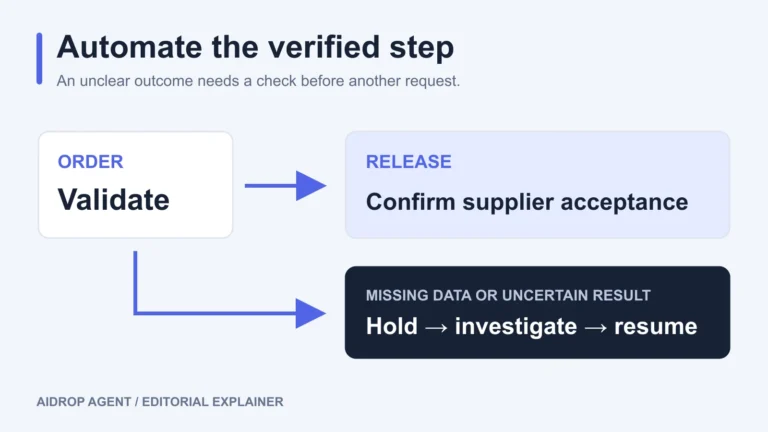
Automated Dropshipping Fulfillment: Setup, Holds, and Recovery
Set up automated dropshipping fulfillment with product mapping, release rules, supplier acknowledgments, holds and safe recovery after
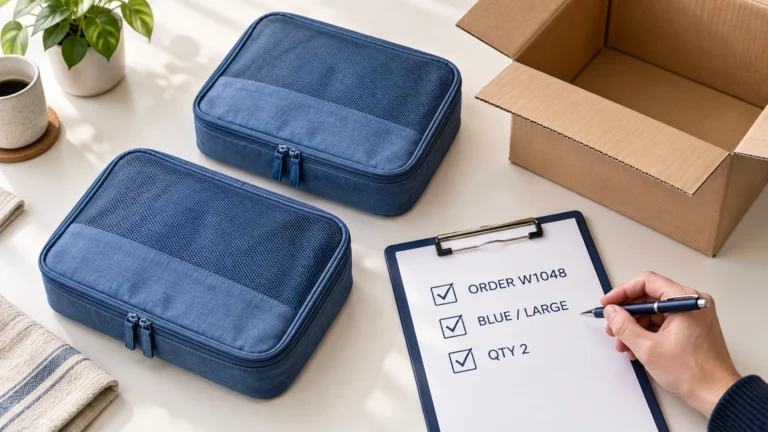
Dropshipping Order Release Checklist: From Hold to Supplier Acceptance
Release a dropshipping order only after its payment terms, risk review, exact items, delivery details, stock, supplier
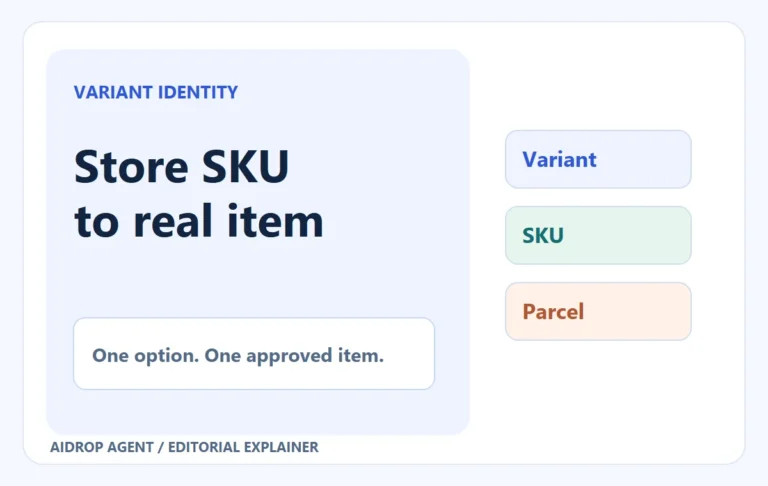
Dropshipping SKU Mapping: Make Every Store Variant Reach the Right Item
A variant-level mapping and controlled order stop the wrong color, size or pack from reaching buyers.