
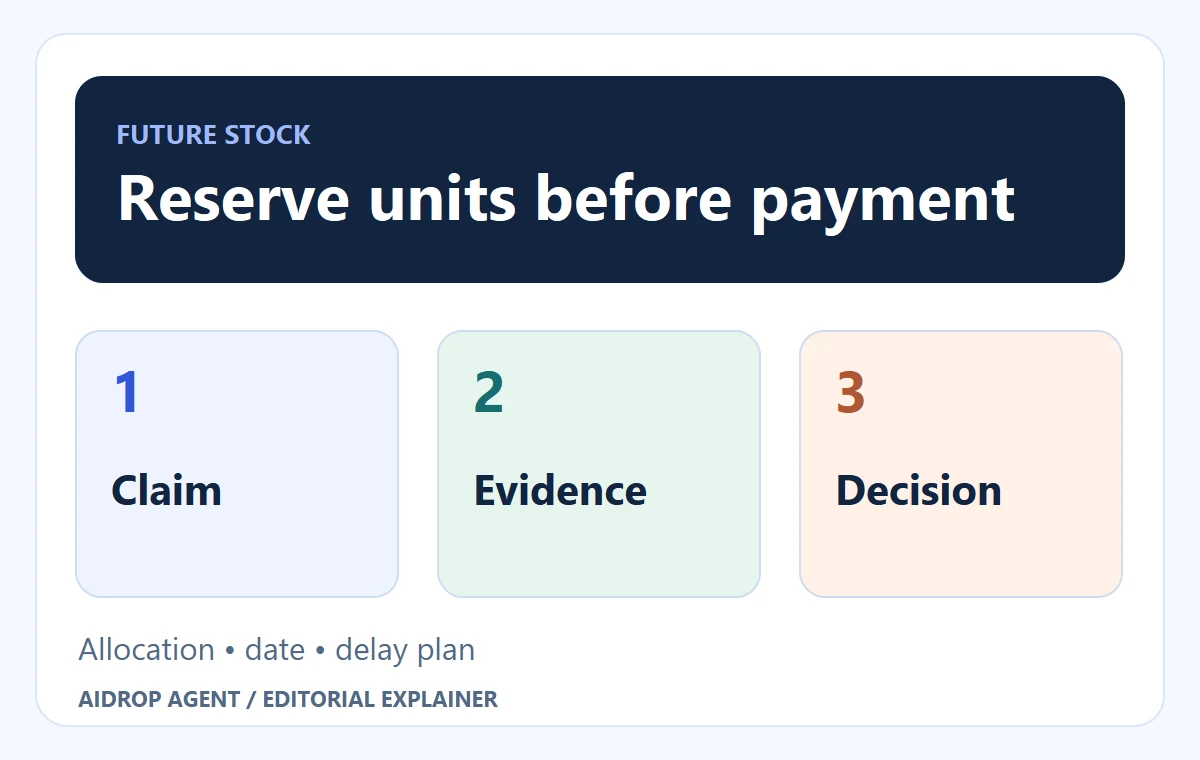
Take a paid preorder only for an exact variant with a credible supplier allocation, dispatch window and cancellation route. “Restocking soon” is not reserved stock. Name who checks the milestone and contacts buyers if it slips; use a waitlist while the commitment is missing.
A preorder can test demand for a new product. It can also become a queue of disappointed buyers if a supplier offers the same incoming stock to several stores. Your customer bought from your storefront; your supplier’s optimistic message does not answer them when shipping is late.
Explore the broader topic: Dropshipping Inventory Management: Keep Stock and Sales in Sync.
01
Decide whether you have a preorder or only a backorder guess
Shopify’s preorder help says preorders can help forecast demand and are implemented with a preorder app. The store still has to comply with applicable law and platform terms. The app displays and processes the option; it does not create physical stock or validate your date.
Get a dated variant allocation
Ask the supplier for a dated statement naming product, variant, incoming quantity, quantity allocated to your store, earliest and latest plausible dispatch date, shipping destination and what happens if production or replenishment slips. If the supplier can only say “we expect stock soon,” describe that uncertainty honestly and consider a waitlist rather than a paid preorder.
These are different states:
| State | What the merchant has | Appropriate next move |
|---|---|---|
| Confirmed allocated future units | Named SKU, quantity and credible dispatch window | Consider a capped preorder with a clear date |
| Expected replenishment, no allocation | Supplier forecast only | Collect interest or wait for confirmation |
| Previously available SKU now out of stock | No reliable restock commitment | Pause sale and use an out-of-stock notice |
On a phone, swipe the table sideways to compare every column.
The out-of-stock guide explains the last case. Do not relabel it as a preorder to keep a product page converting.
02
Reserve below the supplier's number
Keep the checkout cap below a supported quantity
Suppose a supplier expects 50 units of a specific green lamp and offers 30 of them to your store. A 30-order checkout cap leaves no room for damaged samples, stock-count errors or orders the supplier accepted before your allocation was recorded. A merchant might cap at 20 until the supplier confirms the first batch. The numbers are illustrative; the right buffer depends on the supplier’s evidence and performance.

A feed quantity is not your reserved capacity
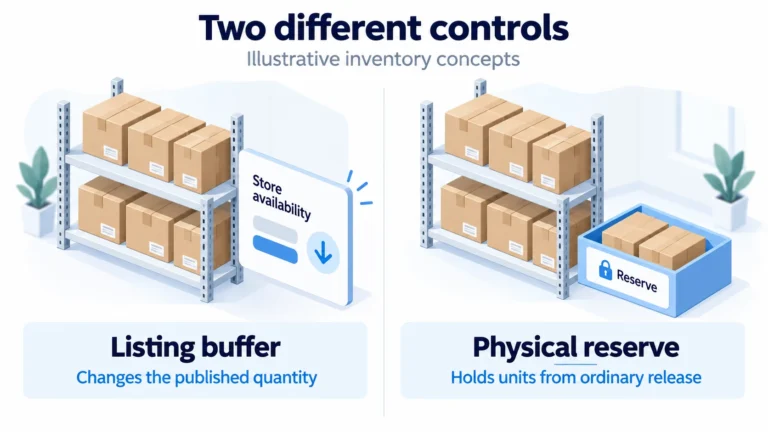
Match each customer order to a supplier allocation. The record should include store order ID, supplier SKU, variant, quantity, deposit or payment, expected dispatch window and status. If an app syncs “available: 50” but you have rights to only 20 units, the app’s quantity is not your sellable preorder capacity. The inventory-buffer guide covers that mismatch.
Do not mix variants. A customer who ordered green cannot silently receive blue because the green allocation vanished. Ask for consent to a change or provide the proper cancellation route.
When the supplier asks for payment
Put the reservation payment on the cash timeline
Some suppliers require an advance payment to reserve the units; others accept orders as stock arrives. Document when your cash leaves, what happens if the shipment is delayed and whether a cancelled customer order can still be cancelled upstream. No-stock-on-hand does not mean no working capital. Put those dates next to your payment processor’s payout timing.
03
Configure the buyer promise before opening checkout
Use the platform’s supported preorder presentation. Shopify’s setup documentation describes app-managed preorder information. The product page, cart, checkout and confirmation should agree that the item is a preorder and identify the expected shipping timing and cancellation contact.
Check payment eligibility and a mixed-cart deposit
Shopify’s current preorder overview requires Shopify Payments or PayPal Express. An ordinary purchase button working with another provider does not prove the preorder will work.
Use the supported purchase route
Shopify’s current setup excludes customized checkouts, Buy X get Y discounts and Shop Promise for preorders. Check the actual app and planned promotion against those restrictions. Then use the product and checkout checks below to verify the purchase option.
Check the whole mixed cart
As an illustration, a $25 deposit for a lamp and $10 for another preorder total $35 at checkout. If their balances have specific due dates of November 3 and 7, Shopify’s documented rule applies the earlier November 3 date to both. A due-on-fulfillment term takes priority over specific dates. Confirm this result in the actual cart rather than promising each product’s date independently.
The existing restrictions on accelerated/local payment methods and supported channels still apply. Deposit collection, supplier reservation and actual shipment are separate events. No checkout or payment was performed for this example.
Set the Shopify purchase option before taking payment
For a Shopify store, finish the chosen preorder app’s setup first. Then make the purchase option visible on the intended product:
Set the app’s offer
Identify the exact variant, your confirmed allocation cap, dispatch window and full-payment or deposit arrangement. Verify that these settings survive the next stock sync; an app cannot reserve supplier units by itself.
Open the product
In Shopify admin, go to Products and select the product with the app-managed preorder option.
Choose how it can be bought
Select Only display this product with these purchase options for a preorder-only offer. Deselect that setting only if you also intend to offer a one-time purchase; check which option the buyer sees and what stock/date promise it carries.
Test the intended checkout
Confirm the preorder disclosure and any deposit/remaining balance using a supported payment route. Shopify currently limits preorders to Online Store and Custom Storefront channels and lists Shop Pay, Apple Pay, Google Pay and local payment methods as unsupported for this purchase option. Check your actual app and checkout before advertising a payment method.
Put the dispatch promise beside the purchase action
Avoid a single small note buried under reviews. Show the expected dispatch window near the purchase action, in confirmation and in support material. If you sell several items in one cart, explain whether the in-stock item ships first or waits. A customer who sees “delivery in five days” on a storewide banner may reasonably misunderstand a lamp that will not leave the supplier for three weeks.
One possible product-page notice is: “Preorder — expected to dispatch May 3–7, 2027. This is a dispatch window, not a delivery date. Need to cancel? Contact [your support route].”
Repeat the actual promise in confirmation
Replace that date and support route with your verified commitment. Repeat the promise in the order confirmation. If an in-stock item shares the cart, state whether it ships separately; otherwise checkout may contradict the product page.
For US internet orders, the FTC’s delivery rule guide says a seller needs a reasonable basis for its shipping representation. If a seller cannot ship within the stated time, it must offer the buyer an appropriate delay-consent or cancellation/refund path. The precise notice requirements depend on the situation; do not assume an email announcing a new date is enough. Review the relevant rule for your market.
The shipping-policy guide helps separate dispatch from transit. A supplier dispatch date and a customer’s delivery date are not interchangeable.
04
Separate three dates the customer may see
Keep factory-ready, dispatch and delivery separate
The supplier’s production completion, its parcel dispatch, and the buyer’s delivery are different events. A preorder page should not take the supplier’s factory-ready date and display it as a doorstep date. Ask when the units reach the dispatch location, how long picking and carrier handover take, and which service delivers to the buyer’s market. Add the parts into a range you can support.
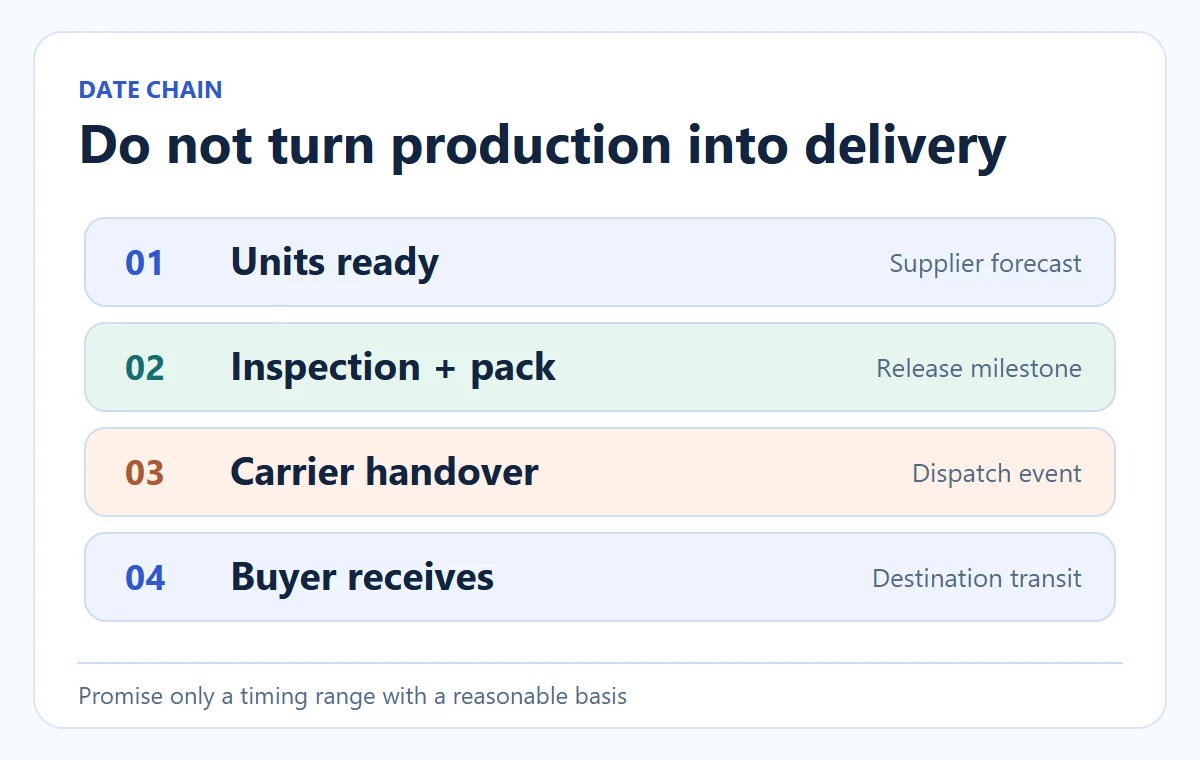
Factory-ready is not doorstep-ready
For a China-to-US product, a supplier might say the units will be ready on November 1. That is not enough to promise November 5 delivery. The goods may still need inspection, packing, carrier acceptance and transit. Put each planned milestone in the supplier record. If a milestone is only a forecast, label it internally and do not convert it into a guaranteed customer date. The shipping-times guide covers the dispatch-to-delivery distinction.
Choose split or combined delivery before payment
If you sell an in-stock accessory with the preordered lamp, decide whether to split the parcel. A split shipment may cost more and may require separate tracking and customer messages. Holding the accessory until the lamp arrives may disappoint a buyer who saw an ordinary delivery estimate. Put the decision in the cart and confirmation rather than improvising after payment.
05
Write the missed-date message now
Set a supplier checkpoint before the public date
Before the first preorder, decide who monitors the supplier milestone and who contacts customers when it fails. Set an internal checkpoint earlier than the public date. If the supplier has not confirmed units by that checkpoint, stop new orders and determine whether the current buyers can still receive a supported new date.
Give a supported date and executable choice
Give the buyer a plain explanation: which product and order are affected, what changed, the new supported timing if one exists, and how to accept the delay or cancel for a refund where required. Do not make the buyer chase three tracking numbers for a parcel that has not shipped. Keep a record of the message and responses.
Keep the changed promise attached to every order
Use one record for the old promise, the supported revised date or unknown-date state, notice time, buyer response, cancellation and actual refund. Changing the product page does not change an earlier buyer’s agreement.
Do not assume silence always means yes
Under the US FTC rule, a first delay to a definite date no more than 30 days later can use non-response as consent only with the required notice and cancellation option.
For a longer or indefinite first delay, if the seller has neither shipped nor obtained specific consent by 30 days after the original shipping deadline, the order is automatically canceled and promptly refunded. A further delay of an agreed definite date needs the applicable renewed notice and express consent; simply changing the date again is insufficient.
Reduce the live obligation when buyers cancel
Suppose 20 green lamps were reserved and three buyers cancel before supplier release. If each paid a $100 full amount, record the three $100 customer refunds and their transaction states. Confirm the supplier releases or cancels those three allocations separately. The remaining 17 orders need a current allocation and supported dispatch commitment—not the old 20-order count.
These are illustrative records, not a compliant legal-notice template. The FTC guide provides the US notice conditions; prepare the correct market-specific message before orders are late. Customer refunds cannot depend on an assumed supplier credit arriving first.
Leave an unknown date unknown
If the supplier cannot give a reliable revised date, do not invent one to reduce support tickets. Offer the proper cancellation and refund route. The refund-policy guide covers the customer-facing document, but the actual action must match the platform and applicable rules.
06
Rehearse the failure branch with a test order
Create an internal order for the green lamp and read each screen as a buyer. “Preorder” and the expected date should appear by the purchase button, in checkout and in the confirmation. The support team should be able to find the same variant and allocation in the supplier record.
Now simulate a supplier slip. Record when you learned of it, affected order IDs, the newly supported date—or that none is known—and each buyer’s response. For US orders, the FTC rule discussed above has specific delay-consent and refund conditions. Have the notice checked for your market; changing a date in the app alone does not notify an earlier buyer.
| Test path | Pass | Hold checkout if… |
|---|---|---|
| Allocation after the next supplier-feed sync | The cap still reflects your reserved units | The feed reopens more units than you control |
| Variant and timing | The green SKU and date match across store, supplier and email | The order silently changes variant or date |
| Cancellation and payment | The correct full payment or deposit can be returned | Your team cannot execute the published refund route |
On a phone, swipe the table sideways to compare every column.
Test the remaining payment and early cancellation
If the app collects a deposit, also test the later balance payment and a cancellation before it is charged. Record whether the store, platform or supplier holds each amount at each milestone. A passing screenshot of the preorder button does not prove that money and inventory will move correctly.
Know when to close checkout
Close checkout when quantity or timing fails
Pause paid preorders when allocation is exhausted, the date loses its reasonable basis, supplier communication stops or cancellation handling fails. A waitlist can still collect interest without payment or a shipping promise. Reopen only with a revised product, date and allocation record; extra orders do not create extra units.
07
Release promotion when the checks agree
Release the promotion only when the quantity, date, checkout words and delay owner agree. If any one is unresolved, a waitlist is often a more honest demand signal than a paid preorder.
Review the committed quantity and milestone
AIDrop Agent can review China-side production or supplier-release milestones, sample approval and fulfillment handoff for a planned product. To make that useful, send the SKU, committed quantity, target destination and proposed dispatch window through the review form. We cannot turn an uncommitted supplier forecast into reserved stock.
08
Frequently asked questions
Can I preorder a product whose supplier only says “restocking soon”?
That does not establish a supportable quantity or date. Seek a written allocation and dispatch window or use a waitlist until the uncertainty clears.
Does a Shopify preorder app handle delays for me?
It provides product and order features. Your business still needs a credible promise, supplier monitoring and a buyer communication/refund process under applicable rules.
What if one variant arrives and another does not?
Keep variant-level allocation and order records. Fulfill the available variant only for buyers who ordered it; contact affected buyers of the delayed variant with the supported options.

Dropshipping Inventory Management: Keep Stock and Sales in Sync
Define supplier quantities, reconcile commitments once, and verify what automatic updates really do. Practical controls for promotions,
Dropshipping Inventory Buffer: Account for Update Delays Without Double Deduction
Set a dropshipping inventory buffer using source quantities and update delays. Avoid double deductions, shared-stock assumptions and

Dropshipping Inventory Forecasting: Know When Supplier Stock Will Run Out
A supplier’s shared stock feed is not your allocation. Forecast against accessible units and real lead time.