
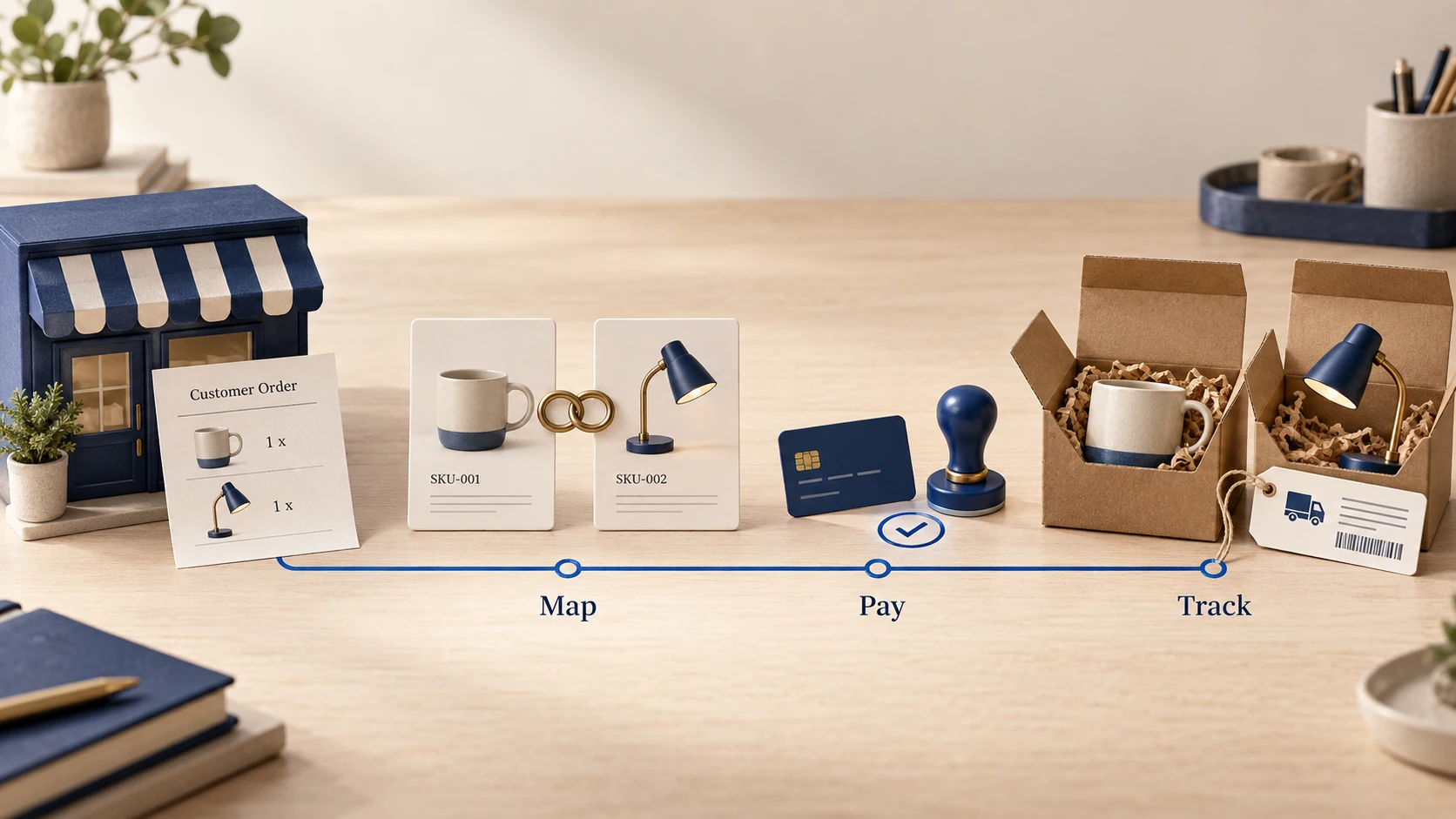
To connect BigBuy to WooCommerce, first choose the integration you will use: BigBuy’s official connector through its Multi-Channel Integration Platform, or a third-party connector such as Woosa. Their authorization, settings and synchronization behavior are different. Start with a small product selection, then verify stock changes, supplier payment, order acceptance and tracking before opening the full assortment for sale.
The most expensive mistake is treating a successful product import as a completed integration. A store can display products correctly while supplier orders fail because a payment method, carrier or background task is missing.
This guide uses public documentation checked in September 2026. It explains configuration and acceptance checks, not a claim that we have installed either connector on a production store. For the commercial setup around it, see the WooCommerce dropshipping guide.
01
Choose one connector and keep its instructions together
BigBuy’s official WordPress plugin listing connects the store to its Multi-Channel Integration Platform. The listed installation route requires a BigBuy account, the ecommerce pack and the WooCommerce connector. Its advertised scope includes catalog, price, order, carrier and tracking synchronization.
The directory currently displays a compatibility warning: the plugin has not been tested with the latest three major WordPress releases. Treat that as a specific reason to confirm support for your WordPress, WooCommerce and PHP combination. It is not proof that the connector will fail on your site, and it should not be hidden behind a generic promise of easy setup.
Woosa’s BigBuy plugin page describes a separate connection using your BigBuy account. The current page advertises a free plugin and specifies resource requirements and periodic stock/price updates. Some older Woosa help pages still refer to a Woosa subscription or license key. Use the current download and activation instructions rather than assuming the older commercial terms still apply.
| Decision | Official BigBuy route | Woosa route |
|---|---|---|
| Who supplies the connector? | BigBuy | Woosa |
| Main configuration context | BigBuy’s Multi-Channel Integration Platform | The Woosa BigBuy plugin in WordPress |
| Access to establish | BigBuy account/package and WooCommerce connector | BigBuy account/API access and the Woosa plugin |
| Documentation to follow | BigBuy’s current onboarding and connector guidance | Woosa’s current product page and relevant help articles |
| Compatibility question | Resolve the directory warning for your exact stack | Compare your stack with Woosa’s current requirements |
Do not activate both for the same products and order flow. Competing imports can create duplicates or overwrite prices; competing order senders can create two supplier purchases. If you are migrating, record the existing product mappings and outstanding supplier orders before switching.
02
Confirm the account, funding and hosting before importing
Confirm which BigBuy package and connector access your account includes, what renews, and which costs are charged separately. Public help pages can lag behind checkout terms. Obtain the current total for the route you intend to use rather than building a business case from an old promotional price.
Your store’s payment gateway and BigBuy’s payment method serve different transactions. The customer pays you through WooCommerce. BigBuy still needs a valid method of collecting the supplier order cost. Woosa’s account guide describes PayPal or a funded Moneybox for automatic order processing. Verify the available method and balance in your account before enabling order submission.
For hosting, compare the current connector requirements with your actual server settings. Woosa warns that large imports and recurring updates can overwhelm insufficient hosting. Its product page currently lists PHP 8.3.x and recommends substantial WordPress memory and execution resources. Ask your host to verify the installed connector’s requirements; do not copy an arbitrary memory value into production without understanding available server capacity.
Keep a recoverable backup of the database and files. Test installation and display changes in a staging environment where feasible, but keep supplier order submission disabled until you understand the connector’s test capabilities. A cloned store can contain real customer orders and live integration credentials.
A test environment is not automatically a supplier sandbox. A production API key can create a real, chargeable order from a staging copy.
03
Authorize the selected route without mixing credentials
For the official connector, install the BigBuy-authored plugin and follow the current Multi-Channel Integration Platform onboarding for your store. Its public listing identifies the route, but it does not document every current account screen. Confirm the store URL and connection destination before granting access.
For Woosa, its authorization guide describes retrieving the production API key from the BigBuy account’s synchronization area, then registering and authorizing the shop in the plugin’s Authorization tab. The guide explicitly says that the Woosa plugin does not support BigBuy sandbox credentials.
Keep the supplier API key separate from WooCommerce REST API keys. One authorizes access to BigBuy; the other authorizes an external service to your store. WooCommerce’s REST API documentation explains that keys belong to a WordPress user and have read, write or read/write permissions. Only generate them when your selected integration requires them, with the access it actually needs.
When authorization fails, capture the exact stage and response. A wrong supplier credential, inaccessible store endpoint and blocked webhook are different faults. Share redacted logs and the connector version with the responsible provider; do not paste secret keys into tickets or public forums.
04
Import a pilot catalog as drafts
Select a small group representing the cases you intend to sell: a simple product, a product with variations, a low-stock item and an item with a different shipping profile. Set imported products to draft where the connector supports it. Keep the live category closed until prices, images, stock and checkout behavior have been inspected.
Woosa’s synchronization guide describes selecting the feed language and categories, then applying product filters. It also provides settings for draft status and choosing which product information is updated. Review the installed version’s available controls before starting the import.
Inspect an imported variation against the supplier record. A correct parent product does not prove that each size, color or capacity has the right supplier reference. BigBuy’s API guide distinguishes product and variation identities and shows that variations have their own references and prices.
For each pilot item, record the WooCommerce product/variation ID, supplier reference, visible attributes and current supplier cost. Place the variation in the cart and confirm the selected attributes remain correct through checkout. Keep identifiers stable if you rewrite titles or descriptions.
Do not import a whole category merely to see whether the connection works. Large imports increase the time required to remove unsuitable products, inspect variations and recover from a mapping error.
05
Set ownership for copy, stock and retail price
Keep supplier stock and cost updates active where supported, while deciding deliberately whether supplier titles and descriptions can overwrite your edited copy. The first import and the ongoing update are separate decisions.
For example, you might import a supplier description to understand the product, then replace it with accurate customer-facing copy. If a later feed update restores the original text, the field is still controlled by the connector. Change that setting before spending time editing hundreds of listings.
Price rules need the same care. A percentage markup on product cost does not automatically cover shipping, payment fees or a promotional discount. For a hypothetical tax-exclusive sale of €45, assume product cost €24, shipping €7 and payment fees €1.50. The remaining contribution is €12.50 before advertising, returns and fixed expenses. A 10% discount lowers revenue to €40.50 and contribution to €8, with the assumed costs unchanged.
Use a real destination quote when approving a product. Do not interpret the supplier’s suggested retail price as evidence of your achievable selling price or profit.
For stock, verify both the normal update and the failure case. If the last successful update is old, continued product availability can mislead customers. Decide how you will pause affected products when updates stop. A small stock buffer can reduce exposure, but it cannot make an indefinitely stale feed reliable. The inventory-management guide covers that wider control.
06
Match the checkout shipping promise to the supplier service
The amount charged at checkout and the service purchased from BigBuy must make commercial sense together. Test a standard destination, a remote postcode you intend to serve and a basket containing more than one shipping profile.
In Woosa, the synchronization documentation describes a prioritized carrier list or choosing the cheapest available option. Neither setting inherently proves that the selected service matches a delivery promise you wrote on the storefront. If your checkout advertises a faster service, verify that the supplier order actually uses a qualifying route.
Record the product’s preparation period separately from transit. A parcel cannot begin its carrier journey while the supplier is still preparing it. Restrict destinations you cannot quote and support confidently instead of collecting payment and resolving feasibility afterward.
For a basket involving other suppliers, establish how the order is split. BigBuy’s official listing says orders from other suppliers need separate handling. A single WooCommerce checkout does not mean every line is managed by the BigBuy connection.
07
Prove one paid order and its return tracking
Use a controlled order with a valid delivery address and an approved budget for any real purchase. Keep automatic submission off until product references, shipping and supplier payment are ready. Then follow that order through the complete chain.
| Stage | Evidence to retain | What it does not prove |
|---|---|---|
| Customer payment accepted | WooCommerce order and gateway transaction | BigBuy has been paid |
| Order sent | Connector event and request reference | BigBuy accepted every item |
| Supplier order accepted | BigBuy order reference and correct lines | Carrier has received the parcel |
| Shipment recorded | Tracking number, carrier and relevant items | Delivery has occurred |
| Tracking returned to WooCommerce | Correct customer order and notification | Every other order will synchronize correctly |
Compare the supplier order with the customer’s original selection: variation, quantity, recipient, service and cost. Check the customer-facing email as well as the administrator view. Avoid two plugins sending contradictory shipment messages.
If one line fails, identify the state of the others before retrying. BigBuy’s API guide describes responses containing created orders and errors, including orders split by warehouse. A custom integration must inspect both. With a packaged connector, ask support how partial acceptance is surfaced and verify the actual supplier records before resubmitting the entire basket.
An unknown result requires a lookup, not another purchase attempt. Find the original supplier order before retrying a timed-out submission.
08
Diagnose a stalled integration by the last completed step
A missing product and an unsent paid order may share a background-task problem, but start with what stopped. Record the last successful synchronization, affected SKUs, order references and the first relevant error.
For Woosa, its stalled-sync guide identifies server resources, queued actions, caching and blocked requests as possible causes. It names bgb_perform as the BigBuy scheduled action and explains the plugin’s Heartbeat option. This is Woosa-specific guidance; do not search for that action in an unrelated official connector.
Inspect WooCommerce’s Scheduled Actions and the connector’s own queue/logs. Repeated failures need their cause fixed before clearing or restarting a queue. If a cache or firewall blocks the required request, make a targeted exception using the provider’s current guidance rather than disabling protection across the whole site.
If Woosa’s Send Orders bulk action is missing, its specific help article says disabled synchronization can be the cause. Before re-enabling it, review pending orders so that resuming the connection does not submit purchases you intended to hold.
When escalating, provide the plugin version, WooCommerce version, server details relevant to the error, timestamps and redacted logs. Include whether the supplier order exists. That last fact changes the response from creating a missing order to repairing its local status.
09
Expand only after the pilot stays synchronized
Add products in manageable groups. Check import counts, the last stock update and failed supplier orders after each expansion. Increasing the catalog also increases image storage, background work and the number of products whose information you are responsible for maintaining.
Keep a route for urgent exceptions: pause affected listings, contact the customer when a promise changes and document the agreed replacement or refund. The automated fulfillment guide explains why automation still needs an owner for orders that stop.
10
Frequently asked questions
Is BigBuy’s official connector the same as Woosa’s plugin?
No. They are different integrations with different authors and instructions. Pick one for the relevant catalog and order flow, and use that provider’s current documentation.
Does successful authorization mean orders are ready to ship?
No. Authorization establishes access. Product mapping, stock, carrier selection, supplier funding and accepted order submission still need verification.
Can I test Woosa with BigBuy sandbox credentials?
Woosa’s public authorization guide says its plugin uses the production key and does not support the sandbox key. Keep supplier submission disabled while testing settings, and treat any enabled order test as potentially chargeable.
Should I retry an order after an error?
First determine whether BigBuy already created it, including any partially accepted lines. Retry only the work that is confirmed missing, using the connector’s documented recovery process.