
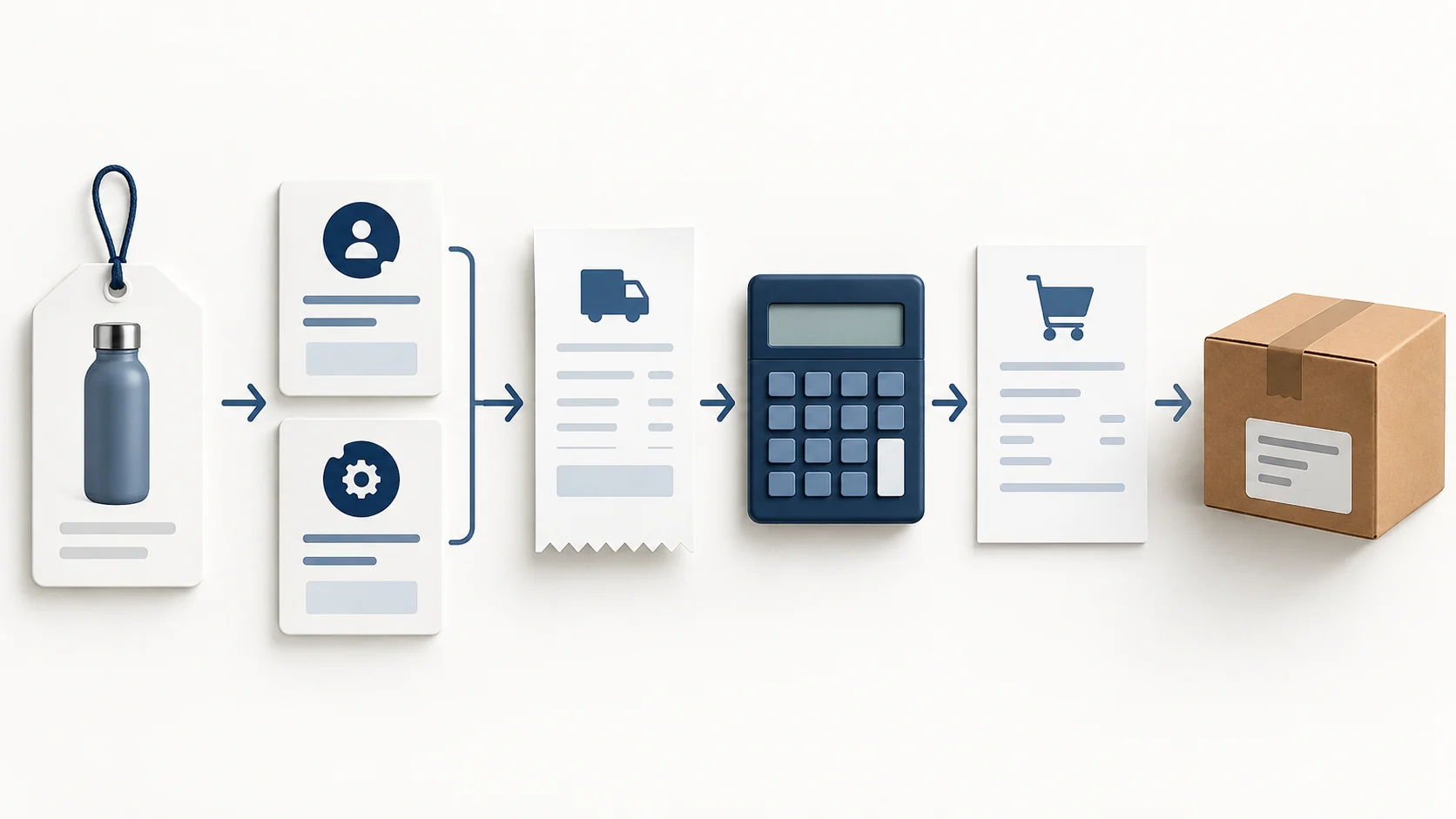
AutoDS can be useful when importing products, checking supplier prices or placing orders has become regular work. It is worth testing if the plan covers that work and the full bill makes sense for your store. If you are still choosing your first product, you can keep those checks manual while you find something worth selling.
This review explains the costs, price settings and order checks that help you decide. It uses current public documentation; we have not subscribed or placed test orders.
01
Add up the bill before starting the trial
Start with the store you want to connect. AutoDS sells plans by selling channel, such as Shopify or eBay, and by tier. A direct account with both stores needs the appropriate channel plans. Several stores on one channel can share a plan only within that tier’s store limit; Shopify Starter supports one store.
Also count variations, meaning the different versions of a product. A shirt in three sizes and three colors uses nine variation slots. The signup guide says these limits cover published products across connected stores. A plan labeled “500 products” does not automatically let you publish 500 products with many sizes and colors.
For a Shopify example, the App Store listing showed Starter 500 at $39.90 per month on September 28, 2026, with importing and price/stock monitoring for 500 products. Import 200 was $26.90 per month, but the official help says that tier has no price/stock monitoring. It will not meet your needs if that is the feature you want most.
Order automation adds separate charges:
- Shopify Starter 500, monthly: $39.90 per month — The chosen Shopify plan and its included tools
- Orders Processor: $9.90 per month — The add-on needed for Auto-Order or Fulfilled by AutoDS
- Recurring software total: $49.80 per month — Those two subscriptions together
- Optional 20 Auto-Order Credits: $9.90 prepaid — Usage credits consumed by eligible automated actions
- Total with that credit purchase: $59.70 — This illustrated first paid setup, before the costs below
The credits guide lists one credit for an ordinary automated order without tracking conversion. New accounts receive five introductory credits, so you may not need that optional pack immediately. Credits are prepaid usage, not another $9.90 monthly subscription.
The example excludes products, supplier shipping, taxes, Shopify/payment fees and other add-ons. Fulfilled by AutoDS also needs money in its Managed Balance to buy supplier orders. That is purchase funding, separate from the software bill.
Check the signup offer before entering payment details. AutoDS’s direct pricing page advertises a $0.99 three-day trial; the Shopify listing offers a free three-day app trial. They are different offers.
An account created through the Shopify App Store is billed through Shopify and restricted to Shopify. If you also need eBay, check the direct signup and its channel plans before choosing the app route.
For direct signup, selecting annual billing means the full annual amount is charged after the trial. Orders Processor is pre-selected in the signup summary, and add-ons have separate charges and renewal cycles.
Expand the summary, remove anything you do not need, and record the actual checkout total and next billing date. Those account details settle your bill; this public-price example cannot account for your tax, promotion or usage.
02
What AutoDS can take off your list
AutoDS can import a supplier product, help you edit its listing, check supported supplier prices and stock, manage orders, and update tracking through supported methods. Each job depends on the selected plan, selling channel, supplier and product connection.
Finding candidates is not approving products
Its Marketplace brings supplier products into one place for browsing and importing into drafts. The optional Product Finding Hub adds paid research tools. A suggested product still needs your checks on demand, cost and delivery; appearing in a research tool does not prove it will earn money in your store.
Monitoring is useful, but it works through scheduled scans rather than instant updates. Suppose a supplier raises a price after the last scan. A customer may buy before the next scan brings that change into your listing. You still need a way to handle that order if its cost is now too high.
Check exclusions and replacement responsibility
The monitoring guide excludes Import 200, products in Drafts and Marketplace listings from that feature. It also says AutoDS does not automatically find another supplier when the current one runs out. Replacing the source remains a manual decision.
Before paying, name the job you want to remove: repeated imports, supplier checks or order entry. Then confirm that your particular products support it. Importing a product also does not give you image-use rights or override your marketplace’s sourcing rules; check those with the supplier and selling platform.
03
Check the selling price with shipping included
A pricing rule needs the whole supplier cost, including delivery to the customer’s destination. If it starts with the item price alone, the missing shipping bill can eat the money you expected to keep.
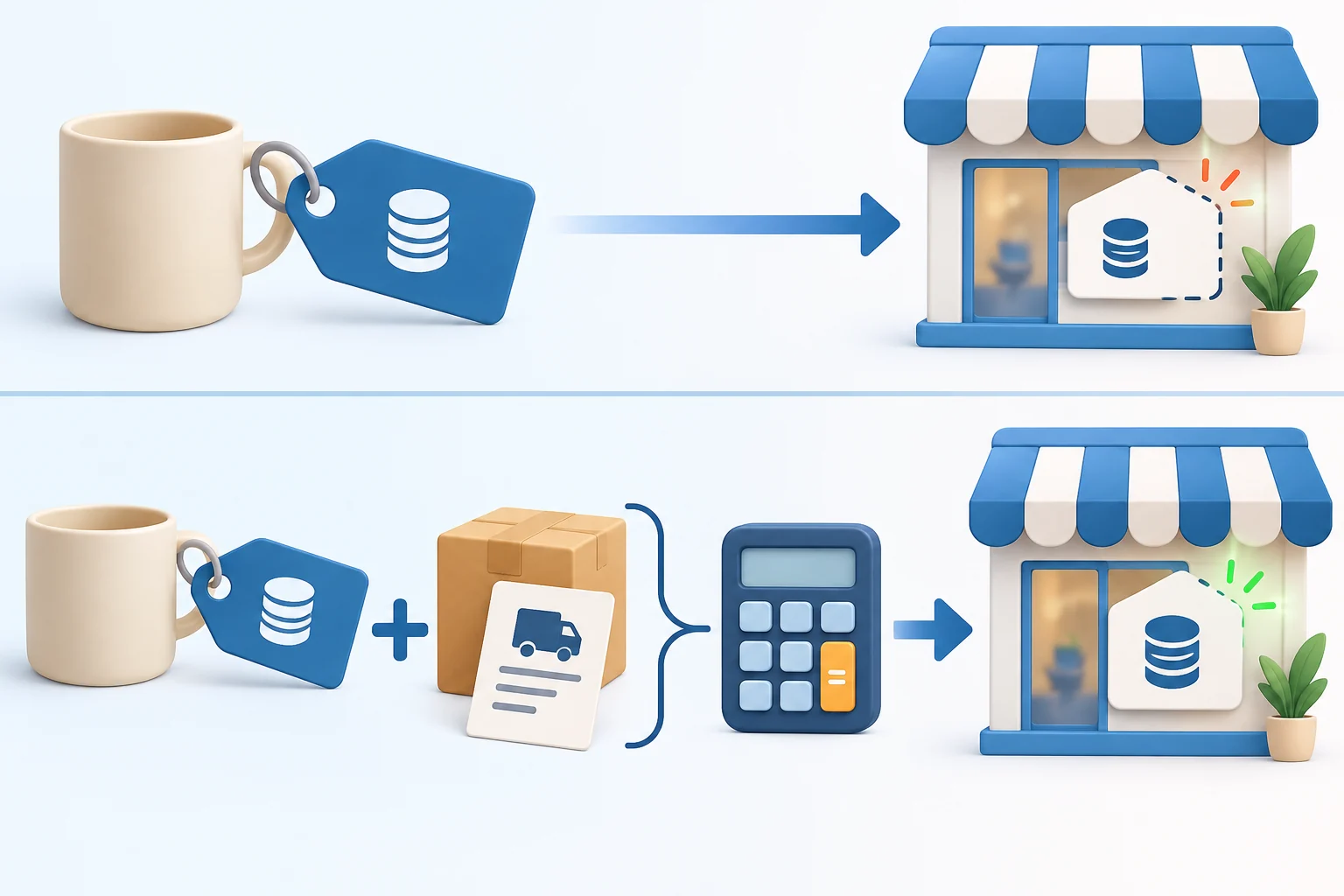
First record the exact product version, supplier region, destination shipping and channel/payment fees. Use the supplier price you can actually rely on. AutoDS’s pricing guide says it monitors regular retail prices rather than temporary or member-only discounts.
Here is a simple worksheet using illustrative figures, not an AutoDS quote:
- Supplier item: $12
- Shipping to the customer: $5
- Channel/payment fees: $3
- Amount you want left from the order: $8
- Minimum selling price under these assumptions: $28
The $8 is contribution: money left after these order costs, before taxes, returns, advertising and a share of your software costs. It is not the store’s final profit. Here the $3 fee is a teaching assumption; use your actual fee formula when working out a real selling price.
If the item rises from $12 to $14, the same calculation needs a $30 selling price. If you forget the $5 shipping, a $23 price appears to leave $8. In reality, $23 − $12 − $5 − $3 leaves only $3.
For the selected store and supported supplier, open Settings → Supplier settings → Pricing and check Include Shipping Price. Confirm the supplier region and Ship to Country. If that destination has no fixed freight amount, the pricing guide describes adding an estimate in $ Fee. Amazon and Walmart use method-specific rules.
Your plan changes the update method
Most saved pricing defaults affect new listings. Include Shipping Price also updates existing products from the next monitoring scan on plans with monitoring. Import 200 has no monitoring: it applies the setting on upload, and the current guide recommends re-uploading to change an existing product’s buy price.
With Worldwide as Ship to Country, this checkbox does not add freight. Check the actual markets you serve and price their costs deliberately; the setting does not promise worldwide delivery.
Verify the shipping change on one listing
Try one permitted listing check using the $12 item and $5 destination freight in the worksheet. Record the supplier variant, store SKU and current buy/sell prices before changing anything; these are invented example values, not prices observed in an AutoDS account.
- Verify the supplier’s actual freight for the selected country. A different destination needs a different input.
- Save the shipping setting for this supplier. On a monitoring plan, inspect the listing after the next scan; do not expect an immediate update.
- Check both the buy cost and the customer-visible price against your rule. Under the example’s fixed $3 fee and $8 target, $17 source cost needs $28 before the other excluded costs.
If you use Import 200, follow the documented re-upload procedure instead of waiting for a scan. Save the SKU and open-order relationships first; recheck the resulting product and variant mapping before customers can buy it. Do not blindly create a second live listing to force a price change.
04
Choose who places and pays for the order
A customer paying your store and a supplier receiving payment are two different events. The order can appear in AutoDS while the supplier purchase is still waiting. Decide how you want that purchase to happen.
On a phone, swipe sideways to compare all columns.
| Method | Who places and pays for the supplier order? | Tracking and problems |
|---|---|---|
| Manual | You buy directly from the supplier with your own funds | You enter tracking, follow delivery and handle supplier returns |
| Auto-Order Full Automation | AutoDS uses your connected buyer account; AliExpress still needs your manual payment confirmation | Supported tracking updates are automatic; you retain the supplier account and handle its returns/disputes |
| Auto-Order Semi-Automation | You buy and pay, then link the buyer account and supplier Buy Order ID | AutoDS can retrieve tracking through the supported connection |
| Fulfilled by AutoDS | AutoDS uses its managed buyer accounts and your funded Managed Balance | Eligible purchases and tracking use that service; its supplier and claim terms still apply |
The own-account guide explains the AliExpress payment step. “Full Automation” does not mean every supplier method is completely hands-off.
You may need to pay the supplier before your selling channel pays out the customer’s money. Keep enough purchase funding for that gap; a profitable order can still get stuck if you cannot pay for it today.
Fulfilled by AutoDS: funding and settings
AutoDS abbreviates Fulfilled by AutoDS as FBA. Here, that means its order service, not Amazon’s warehouse program. The FBA guide requires a supported supplier/warehouse, the correct currency wallet, enough Managed Balance and Auto-Order Credits, and Orders Processor. Enable both the FBA-processing and automatic-orders options for each supplier you intend to use.
Having money in Managed Balance does not replace credits. An order can fail with a funded wallet if credits are zero; low purchase funds can pause orders too. Enabling the settings applies to new eligible orders. Existing orders need the documented separate release step, after you check whether a purchase has already happened.
Before allowing more orders through, use the platform’s permitted test method to check one complete order:
- The correct product and variant arrive from your store in AutoDS.
- The selected method confirms the supplier purchase and payment.
- The supplier Buy Order ID is saved beside the store and AutoDS order IDs.
- Tracking reaches the right order and the customer receives the expected update.
- A person knows who will handle a failed purchase, delay, wrong item or return.
Also check how a held or failed order is shown and who receives the alert. Name the person who adds funds or corrects the problem, and when they update the customer. An imported store order without a confirmed supplier purchase is still unfinished. These are checks to run in your own setup, not tests we performed for this review.
05
Find the reason an order is stuck
Start with the payment and product connection before retrying a purchase. A missing order, an Unmonitored order and an Awaiting Payment order need different checks.
Held for customer payment
If Shopify shows Awaiting Payment, the Shopify integration guide says AutoDS holds the order until Shopify confirms payment. Review the hold in Shopify. The order being visible in AutoDS does not prove that the customer or supplier has been paid.
Missing supplier connection
If AutoDS shows Unmonitored, its Orders guide says the product lacks the supplier connection needed for automation. Check the exact variant and connect the appropriate supplier product. An unconnected or inactive listing cannot use the price, stock and order tools you expect.
Store authorization or sync problem
If a paid order is missing, check the connected store and follow the store-settings instructions for renewing its token and resyncing Shopify. A token is the authorization that lets the store and AutoDS exchange information. The documented steps may require waiting up to two hours; repeatedly clicking is not proof that the connection has recovered.
Before releasing or retrying an order, compare its store order ID, AutoDS order ID and any supplier Buy Order ID. Check the supplier account or purchase record as well. This helps you avoid buying a second item for a customer whose first purchase already succeeded.
If the problem remains, send one useful support report: what you tried, what happened, the full page URL, the time, relevant product/store/order IDs, and a screenshot or recording of the error. The troubleshooting guide also points to the status page for wider incidents.
The support guide starts with Orin, its automated assistant. A case escalated to a person becomes a support ticket, which you follow in Messages and email; it is not continuing live chat. These instructions show how to ask for help, not how quickly a person will solve your case. Public customer reviews describe individual experiences and cannot establish a typical support failure rate.
Keep the customer informed while the supplier purchase or delivery is unresolved. A software ticket does not answer their question about when the parcel will arrive.
06
Decide whether the bill solves your problem
AutoDS makes more sense when you already repeat the work it can handle: importing products, checking supplier changes or entering orders. Compare that work and the mistakes it creates with the complete bill and the checks you will still need to do. There is no fixed number of hours or guaranteed saving that makes it worthwhile for every store.
For several stores, add up the channel plans and confirm supplier coverage. For a store still seeking its first viable product, start with the product research decision and keep purchase checks manual. Our dropshipping automation software guide helps compare other ways to handle listing and order work.
Keep four notes from your own check: the actual bill, the correctly priced listing, the confirmed supplier purchase and the person handling problems. They tell you whether this setup solves the job you wanted help with.
If the missing information comes from a China-side supplier—an unclear variant, incomplete quote or unsuitable packing—AIDrop’s product sourcing service can help compare suppliers, clarify specifications, arrange samples and coordinate packing or problem evidence within the agreed scope.
Send an enquiry with the product link, variant, quantity, destination and the question you need answered.
That helps establish physical costs and product details; it does not promise an AutoDS integration or replace the software setup above.
07
Frequently asked questions
Does the base plan include automatic order processing?
Orders Processor is a separately billed add-on for Auto-Order or Fulfilled by AutoDS. The chosen method can also require credits, purchase funding and supplier-specific settings.
Is the three-day trial free?
The direct pricing page advertises $0.99; the Shopify App Store listing offers a free three-day app trial. Check the signup route, add-ons, billing cycle and renewal date in the checkout you use.
Can AutoDS guarantee accurate supplier prices and stock?
No. Monitoring uses scheduled scans, so a supplier change may happen between updates. Include shipping and fees, inspect the actual listing and keep someone responsible for orders the current rules cannot complete.
Dropshipping Automation Software: Compare Tools, Costs and Workflows
Compare dropshipping software by supplier fit, pricing, stock updates and order handling. Build a workable setup with
CJdropshipping Review: Costs, Warehouses, Quality and Fulfillment Fit
CJdropshipping is a practical option for sellers who want sourcing, store connections, packaging and fulfillment in one

CJdropshipping vs DSers: Who Sources, Pays and Ships the Order?
CJdropshipping can source and physically fulfill an order; DSers maps a store product to supported external suppliers