

To fulfill dropshipping orders on Shopify, check the order, send the correct items to your supplier through its app or an agreed manual channel, complete the supplier payment, and verify acceptance. Then connect the shipped items and tracking information to the Shopify order. A customer payment, a supplier request and a parcel shipment are separate events.
The right action depends on who controls fulfillment for that item. An app-managed order may need a fulfillment request or a purchase inside the app. A manually managed order needs you to place the supplier order and later record the shipment. Clicking a status button does not purchase a product from your supplier.
This guide follows an order that already exists. For the wider platform decision, start with the Shopify dropshipping guide.
01
Identify who fulfills each item
Open the order and inspect the items, their quantities and their assigned fulfillment location. Also identify the app or supplier responsible for each line. One customer checkout can create work for more than one fulfillment provider.
App-managed items: Follow the integration’s documented order flow. Some apps receive Shopify fulfillment requests; others require a supplier purchase inside the app. Check which action actually submits the order.
Manually managed items: Send the order through your agreed supplier channel, obtain its order reference, and record the shipment in Shopify after the supplier ships. Keep one person or system responsible for that final update.
Shopify’s fulfillment-app documentation explains that behavior differs between dropshipping apps. An installed integration alone does not establish whether purchasing, payment and fulfillment updates are automatic.
Before processing the first live order, write down the answer to three questions: Who submits the purchase? Who pays the supplier? Who writes tracking back to Shopify? A workflow that leaves any answer unclear is difficult to recover when something goes wrong.
02
Check the order before releasing it
Review the order while it is still possible to correct the details without interrupting a warehouse. Focus on information that changes what the supplier buys or ships:
- Payment: Confirm the required payment has been captured or otherwise approved under your payment method. An authorization is not the same as captured funds.
- Product: Match the Shopify variant to the supplier variant, including size, color, quantity and any personalization.
- Address: Resolve missing apartment details, invalid postcodes and unsupported destinations before submission.
- Availability: Verify stock and the dispatch commitment for the exact variant.
- Delivery: Confirm the supplier service can meet the shipping option the customer purchased.
- Exceptions: Review fraud warnings, customer change requests and any active fulfillment hold.
Shopify distinguishes authorization from capture in its payment guidance. Your store’s capture settings and payment method determine what must happen before the order is ready for release. Do not infer readiness from an order-confirmation email alone.
For a practical check, compare the order against the supplier mapping used for the product. A correct product title with an incorrect variant code can still send the wrong item. If mapping is uncertain, hold that item and resolve the supplier reference before placing the purchase.
Inventory needs its own check when several suppliers or stock locations are involved. The inventory management guide explains how to separate available stock from quantities that are already committed. Changing a Shopify number does not create stock at the supplier.
03
Fulfill through a connected supplier app
Start in the app if its instructions require you to place and pay for the supplier order there. Find the imported order, compare it with Shopify, select the correct supplier and shipping option, and complete the required purchase. Save the resulting supplier order ID against the customer order.
For example, DSers’ current first-order walkthrough includes placing the order and paying the supplier. The later shipping and tracking updates follow that purchase. The customer’s Shopify payment does not itself pay the supplier. This example describes DSers; another integration may use a wallet, invoice or separate approval arrangement.
If the integration uses Shopify’s fulfillment-service request flow, open Orders, select the order, choose Request fulfillment, review the notification choice and send the request. Check the order timeline for acceptance or rejection. Shopify documents these controls in its fulfillment-app guidance linked above; the exact available action depends on the assigned service and current order state.
After submission, retain enough information to distinguish an accepted purchase from an attempted one:
- The Shopify order number and the items submitted.
- The supplier or app order ID.
- The payment or approved billing record.
- The acceptance result and expected dispatch date.
If the page times out after you click submit, search the supplier system before trying again. A slow response can leave you uncertain about an order that was actually created. Ask the supplier to search by the external order reference if the app cannot show a clear result.
04
Use the manual supplier path correctly
A manual workflow can work well at modest volume when the supplier accepts orders through a portal, structured file or another agreed channel. The important part is preserving the same reference from customer order to supplier purchase to shipment.
Send only the information needed to fulfill the order. This normally includes the external order reference, supplier SKU, variant, quantity, shipping address and selected service. Include approved packing instructions where they affect execution. Give the supplier a clear method for returning acceptance, dispatch and tracking updates.
Once the supplier confirms the purchase, record its reference. Once it ships, use Shopify’s manual fulfillment controls for the relevant items and quantities. In Shopify’s current individual fulfillment instructions, you can select the quantity, add tracking, check the carrier and choose whether to notify the customer before completing fulfillment.
Do not mark the entire order fulfilled just because you sent an email to the supplier. That can make the store appear further along than the physical shipment and can trigger a customer message at the wrong time.
If you cannot see the manual fulfillment action, inspect the location assignment. A service-managed item follows a different path from an item managed at your own location. Do not move it simply to expose a button while the original provider may still be preparing the parcel. Confirm any cancellation before changing the fulfillment arrangement.
For recurring manual orders, agree on an acknowledgment deadline and an escalation contact. “File sent” is a useful record of your action; it is not confirmation that every row was accepted. Ask for rejected rows separately so a single invalid address does not disappear inside a large batch.
05
Match tracking to the items that shipped
Keep fulfillment updates at the item and parcel level. If two items leave in different parcels, each shipment needs the right item quantities and its own tracking information. A customer should be able to understand which item is on its way and which remains outstanding.
Consider an illustrative order for two blue, medium shirts. The supplier has shipped one shirt and is waiting for stock for the second. Record a shipped quantity of one against the first parcel. Keep the other shirt outstanding until its actual disposition is known. One tracking number does not prove that both shirts were packed.
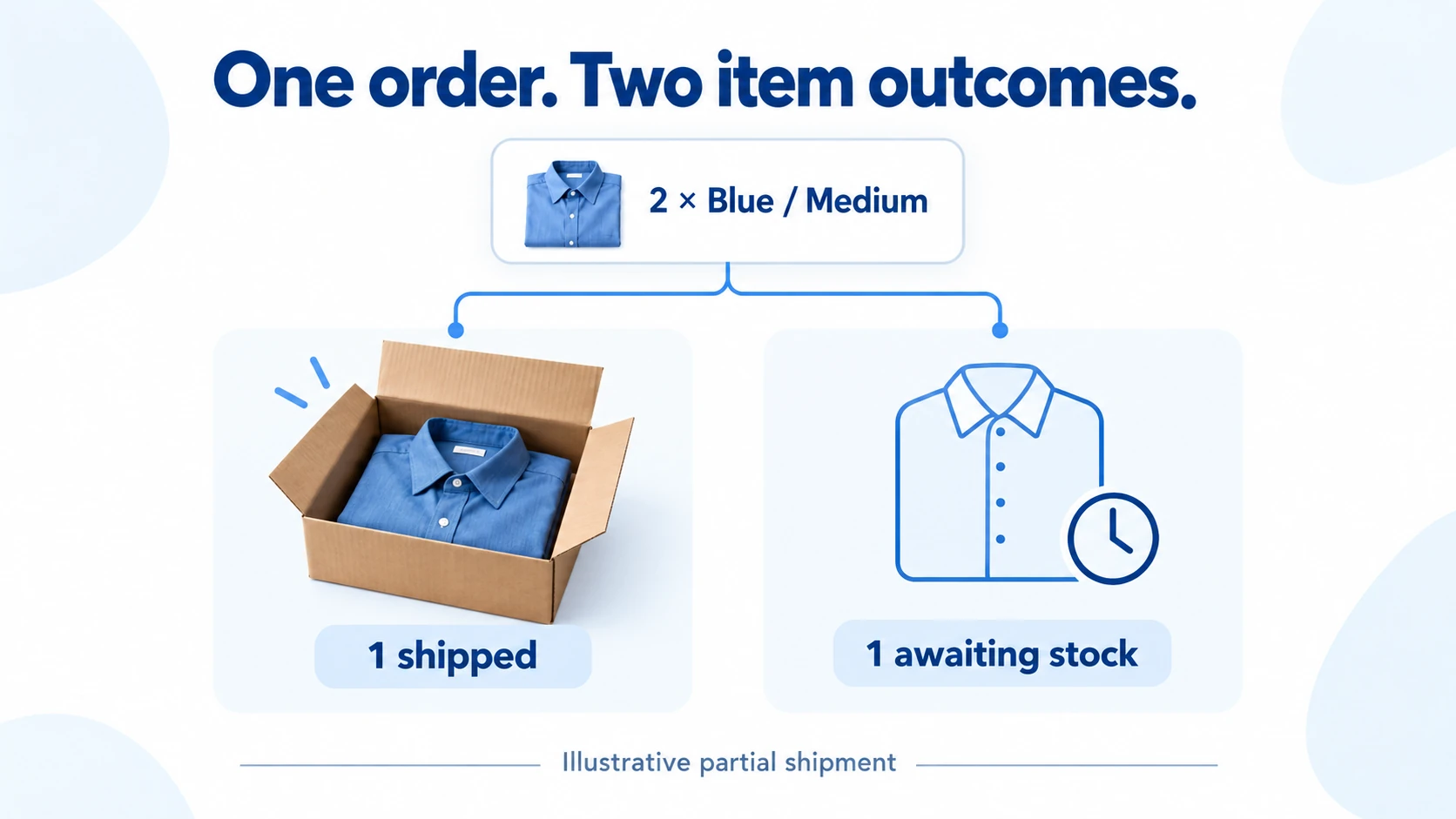
Shopify’s order-status reference distinguishes partially fulfilled from fulfilled orders. Payment and return statuses are also separate. Review the combination rather than reading one badge as a complete account of the order.
Check a newly returned tracking link before relying on it:
- It opens the expected carrier or tracking service.
- The number belongs to the correct shipment.
- The destination information, where shown, is consistent with the order.
- The latest event supports the message you are sending.
A label-created event is not carrier possession. UPS, for example, distinguishes receiving shipment information from receiving and moving the parcel in its tracking-status definitions. Other carriers use different wording, so read the actual event rather than guessing from the existence of a tracking number.
If your app returns tracking automatically, avoid adding a second fulfillment manually without checking what already exists. Determine whether the missing element is a fulfillment, a tracking update or merely a delayed display refresh.
06
Resolve a stalled order without ordering twice
Find the last confirmed event first. A Shopify order that looks stuck can be waiting at several different points, and each point needs a different action.
Paid, but no supplier order: Inspect the app import, product mapping and submission queue. Place the purchase only after confirming that the supplier does not already have it.
Supplier order exists, but is not accepted: Check payment, stock and the supplier’s rejection message. Correct that existing order where possible; do not create a second purchase to make the Shopify status change.
Accepted, but no dispatch evidence: Ask the supplier for the preparation status and revised dispatch commitment. Update the customer if the promised timing is affected.
For an unclear result, reconcile three references: Shopify order number, supplier order ID and parcel number. If the supplier order ID exists but Shopify has no update, the next task is synchronization or investigation. If neither system can locate a supplier purchase, the next task may be submission. These are different situations even when the store displays the same unfulfilled status.
A useful exception note says what was checked and what remains uncertain: “Supplier order located; payment confirmed; dispatch date requested.” That gives the next person enough context to continue without repeating the purchase.
Set the escalation time against the promised dispatch or delivery window. A blanket rule to wait a fixed number of days can be inappropriate for an express order or a product with a long declared preparation period. Assign an owner and a next update time to every unresolved order.
07
Handle cancellations and changes before rerouting
Treat the customer’s request and the supplier’s ability to stop work as separate facts. A customer can ask to cancel after the warehouse has already picked, personalized or shipped the item.
For app-managed fulfillment, review whether the request is still waiting or has been accepted. Shopify’s fulfillment-app documentation distinguishes canceling an unaccepted request from asking the provider to cancel an accepted one. Wait for the provider’s response before treating the physical work as stopped.
The same principle applies to a manual supplier. Obtain a clear cancellation acknowledgment tied to the supplier order ID. If the supplier cannot stop the parcel, handle the customer outcome under your applicable terms and obligations, and arrange the next logistics action with the supplier.
Do not confuse these actions:
- Refunding the customer changes the payment outcome.
- Canceling or changing fulfillment affects the store’s fulfillment record.
- Supplier confirmation establishes whether its physical work has stopped.
- A carrier interception or return is another service with its own availability and terms.
For a replacement or rerouted order, first account for the original shipment. Otherwise the customer may receive two parcels while your team believes it corrected one failed request. Record which cost the supplier has agreed to credit, and reconcile that credit separately from the customer refund.
08
Automate only the verified parts
Once a manual test works, automate the repeatable checks and transfers. A reasonable release rule might require a captured payment, a known variant mapping, an accepted destination and no unresolved hold. The rule should leave exceptions visible for review.
Test the failure paths as well as a successful order. Use a controlled test for an unavailable variant, a rejected address and a duplicate submission attempt. Confirm what the app records, which notification is sent and who can recover the order. Do not test by placing unintended live supplier purchases.
Keep a daily view of paid orders without supplier acceptance, accepted orders past dispatch commitment, and shipped orders with tracking exceptions. This view is more actionable than an overall fulfilled percentage because it shows what needs attention now.
For the wider design of release conditions, retries and exception ownership, use the automated dropshipping fulfillment guide. Automation should make each order easier to trace from purchase through delivery, including when it needs a person to intervene.
09
Frequently asked questions
Does Shopify automatically order products from my supplier?
Only when your connected service and its settings provide that behavior. Some apps require you to place or pay for a supplier order. Confirm the actual purchase step in the app’s documentation and test it before relying on automatic processing.
Should I click fulfilled as soon as a customer pays?
For a physical dropshipping order, record fulfillment according to the verified shipment and your integration’s supported flow. Payment proves a payment event. It does not establish supplier acceptance or dispatch.
Can I fulfill one item now and another later?
Yes. Use the relevant item quantities and keep the remaining items outstanding. Match each parcel’s tracking to what actually shipped, and explain the split delivery to the customer.
Why is the order paid but still unfulfilled?
It may not have been submitted to the supplier, may need supplier payment, may have been rejected, or may be waiting to ship. Locate the last confirmed event and supplier reference before taking action.
Can I change suppliers after sending a fulfillment request?
First establish whether the original supplier has accepted or started the work. Obtain the necessary cancellation confirmation before rerouting. Changing the Shopify record alone does not prove that the original supplier stopped.