
Shopify announced on September 8, 2026 that a product variant can hold up to 20 barcodes. For a merchant receiving different identifiers from suppliers, that gives the extra codes a place in the product record instead of a separate spreadsheet.
The useful question is what happens after those codes leave Shopify. A supplier app that reads one identifier may still receive only one. Before expanding an import, check the first code, the exact item it represents and the identifiers that arrive in the next system.
Checked September 17, 2026. This article covers Shopify’s September announcement and the associated documentation available on that date.
01
What changed on September 8
The merchant announcement describes adding codes from the variant details page, Shopify’s mobile app or the bulk editor. Codes can have types such as UPC, EAN or GTIN; custom identifiers are also supported. Existing barcodes remain in place, so merchants do not need to rebuild their records just to keep using them.
The first barcode still matters wherever a channel or app expects a single value. An additional identifier expands the record; it does not mean every connected tool now receives the whole list.
Shopify separately announced multiple-barcode scanning in POS on September 1 for version 11.14. The codes must first be associated with the variant in the admin. That is a documented Shopify POS feature, not evidence that an independent warehouse scanner or supplier integration behaves the same way.
For an online dropshipping store, start with the systems you actually use. If nobody scans goods through Shopify POS, the more relevant benefit may be keeping supplier identifiers attached to the correct variant. The next section deals with the part software cannot establish for you: whether those identifiers really describe the same item.
02
One variant still needs one clear product identity
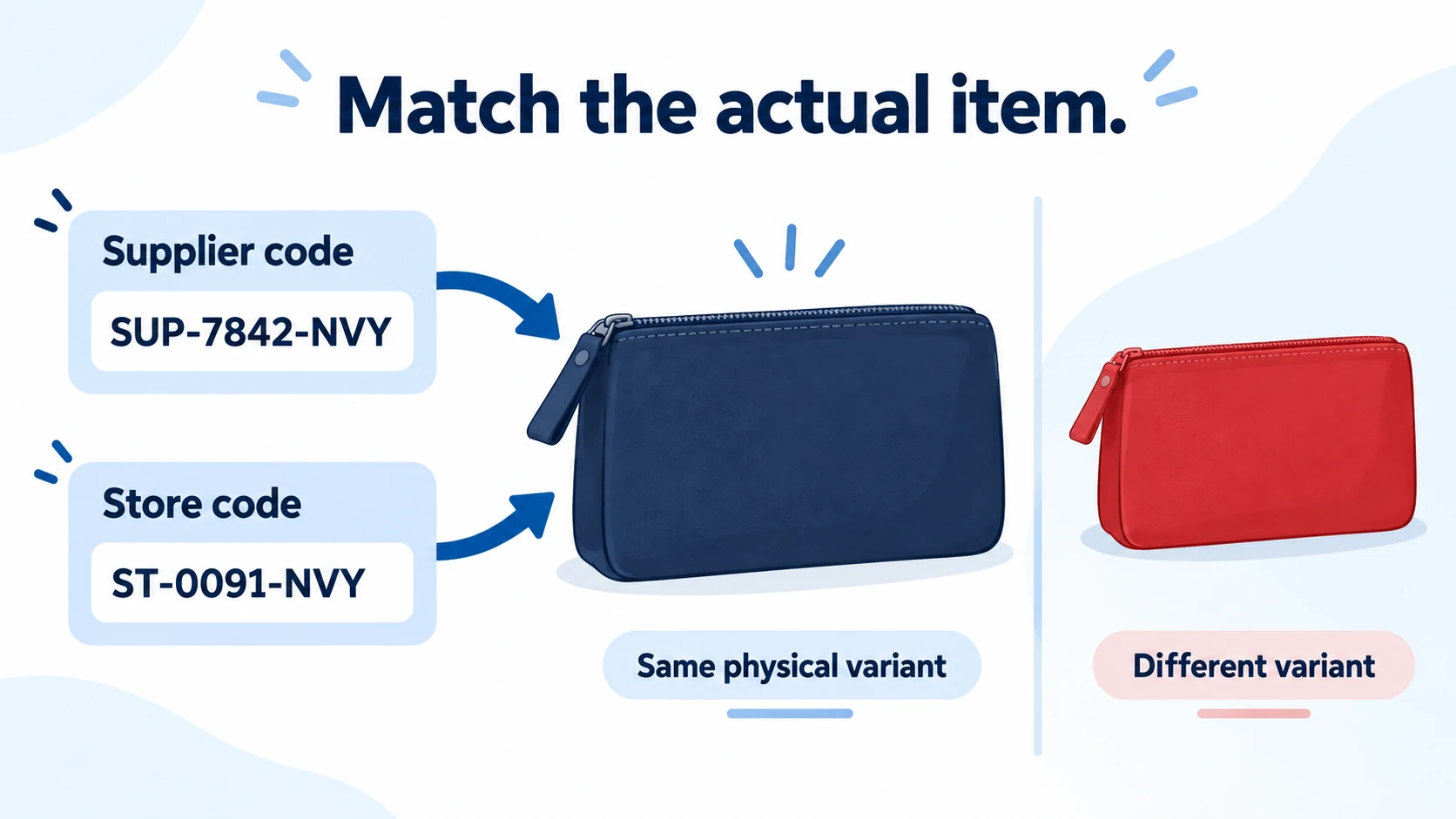
Imagine a navy zip pouch sold in one size. A supplier uses an internal code for it, while your store keeps a different internal code. The letters themselves tell you little. Compare the pouch’s dimensions, material, color, closure and included pieces before treating both records as the same offer.
Here is an illustrative mapping review. The labels are placeholders, not valid retail barcodes or a suggested naming standard.
| Record you receive | Physical item check | Decision before mapping |
|---|---|---|
| Supplier-A and Store-B | Same navy pouch, size and included pieces confirmed | Candidate identifiers for the same variant |
| Supplier-C | Red pouch in the same range | Keep the color distinction; do not attach it to navy merely because the shape matches |
| Supplier-D | Photo matches, but dimensions are missing | Resolve the missing specification before treating it as equivalent |
A matching image can hide a change in capacity, lining or pack quantity. Ask for the missing detail rather than using the code list to conceal uncertainty. If the supplier replaces a product, confirm whether it is genuinely equivalent to the approved offer before retaining the old mapping.
Shopify’s product-details guidance distinguishes your business’s SKU from barcode identifiers and explains that some channels require a GTIN. Storing a custom code does not make it a registered identifier or satisfy a channel’s separate listing requirements.
This is also why adding codes should not automatically trigger a supplier switch. The product record describes what you intend to sell; your supplier fulfillment workflow still needs to send the correct item, variant and quantity to the party that will dispatch it.
03
Check what the supplier app reads and overwrites
The developer notice, labeled API version 2026-10, introduces a barcode collection alongside the older single-value field. Shopify says the older field is deprecated but continues working; that notice does not announce an immediate removal date.
Two behaviors deserve a specific question to the app provider. Reading the old field returns the first entry. Writing the new list replaces the existing set, so a list update must include codes that should remain. An integration can therefore appear to work while passing along fewer identifiers than the merchant expects.
Ask the provider to show the saved input and output for one test variant. “Supports Shopify” is too broad an answer for this change. A useful response names the API version, the field it reads, the field it writes and how it preserves codes supplied by another system.
Consider an illustrative record containing Store-B first and Supplier-A second. If an app reads only the first value, it sees Store-B. Whether that is acceptable depends on the app’s existing mapping: it may already translate Store-B correctly, or it may expect Supplier-A and fail to identify the item.
Do not reorder a working record simply to make the second situation disappear without checking the other connections. A sales channel, label process or second app may rely on the current first value. Write down which consumer needs which identifier, then decide whether the integration should read the complete list or retain an explicit mapping.
The observable result is the supplier order, not a green import message. Check the item and variant the supplier would receive. Use an isolated test path so a catalog check does not accidentally create a paid supplier order.
04
Use the CSV format for the tool doing the import
A spreadsheet accepted by one app is not necessarily a native Shopify product import. Identify the importer before borrowing a sample file.
As checked for this article, Shopify’s current product CSV documentation describes a Barcodes column with semicolons between multiple values and a type prefix followed by a colon. The release announcement uses different column wording. The practical starting point is a fresh export from your store and the documentation for the importer you will use, rather than a remembered heading from an older file.
The same help page warns that variant columns have dependencies. In particular, omitting required option data when changing variant details can create a default variant and remove existing variants. Keep the relevant option columns and read the import preview before confirming a change.
Make a small working copy containing only the products you intend to test. Preserve an untouched export separately. If another tool produces the file, compare its output with what the receiving tool expects: header names, separators, barcode types and the treatment of blank cells all deserve a deliberate check.
Do not solve an import error by deleting columns at random. Find the field named in the error, check its related option data and repeat the small test. A file that imports successfully still needs a saved-record check before it becomes the basis for a catalog-wide update.
05
Run a small test before extending the change
Choose a few records that represent your real catalog: one with a single existing code, one confirmed item with two identifiers and one variant that must stay separate from a similar product. Keep the pre-change export and note the intended result for each.
- Save and reopen the variant. Confirm the complete code list and the intended first value.
- Export it again. Compare the saved identifiers with the working file; inspect missing or unexpectedly reordered values.
- Check the receiving app. Confirm which identifiers it stored and which item its supplier mapping selects.
- Exercise the relevant workflow. If scanning is part of your operation, scan the actual labels. If orders are routed digitally, inspect the order payload through a safe test path.
- Repeat an update. Confirm that the next routine sync preserves the record instead of undoing the change.
Keep a mismatch attached to the affected product until it is resolved. A failed test on the red pouch need not stop an unrelated, confirmed product from moving forward, but it should stop that red code from being assigned to navy.
Once the test works, expand in manageable groups and retain the comparison files. The broader Shopify dropshipping guide covers the surrounding store and order setup. For this update, the acceptance standard is narrower: the right identifiers survive the round trip and still lead to the right physical product.