
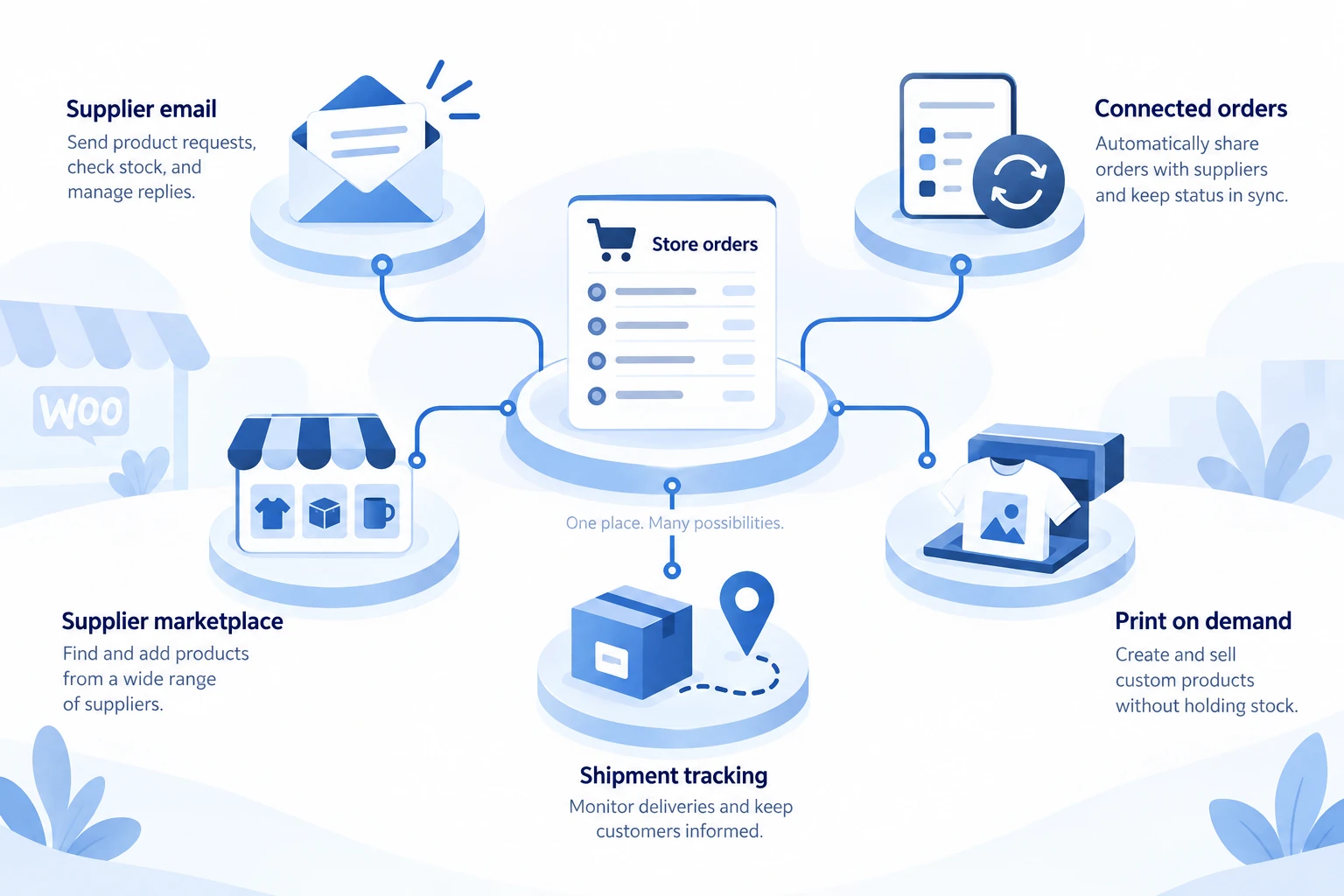
WooCommerce Dropshipping, DSers, Syncee, Printful and Shipment Tracking serve different parts of a dropshipping business. The useful choice depends on whether you need to send orders to an existing supplier, connect a sourcing service, find products, sell print-on-demand goods or show customers their tracking details.
Choose the supplier arrangement first, then the software that supports it. A product-import tool will not fix an unsuitable delivery route, and a tracking extension will not place the supplier order. This comparison uses the providers’ documentation checked on September 17, 2026; it is not a hands-on performance ranking.
01
Choose the job before the plugin
Start with the work you need to complete. These five options make a practical shortlist:
- WooCommerce Dropshipping: supplier notifications and packing slips for a store working with assigned suppliers.
- DSers: a connected service for product importing and supplier-order workflows, with WooCommerce support.
- Syncee: a supplier marketplace and product-management connection for building a sourced catalog.
- Printful: a print-on-demand integration connecting the store to production and fulfillment.
- Shipment Tracking: an order add-on for presenting tracking details to customers.
The first four overlap in some catalog or order tasks, but they are not interchangeable. The fifth is a supporting extension. A store might need one sourcing connection and a tracking solution; it does not need every product importer on this list.
For the complete setup, including hosting, payment, shipping and a first order, use the WooCommerce dropshipping guide. Here the decision is narrower: which tool fits your supply arrangement, and what must you verify before relying on it?
02
WooCommerce Dropshipping for existing suppliers
The WooCommerce Dropshipping extension documents assigning products to suppliers, grouping ordered products by supplier and sending order-notification emails. It also generates PDF packing slips that can accompany those emails. That makes it worth investigating when you already have a supplier who accepts this type of handoff. See the extension documentation.
Useful fit: a merchant with established wholesale partners and a clear agreement about how emailed orders are received and processed. Supplier grouping is particularly relevant when one cart contains products from different partners.
The important limitation is the meaning of the email. A sent notification does not prove that someone reserved stock, accepted the price or began preparing the order. Agree on an acknowledgment and record the supplier’s reference before treating the purchase as accepted.
During evaluation, send a controlled order containing products from two suppliers. Check what each recipient receives, including quantities, delivery details and packing-slip content. Confirm that neither receives the other supplier’s items or information they do not need.
Do not assume every feature described on a long documentation page applies to your intended workflow. Validate the supplier-notification route you plan to use, and check current release notes for any additional import features you require.
03
DSers for connected sourcing and orders
DSers provides a WooCommerce connection for importing products and handling connected order workflows. Its current integration page describes bulk imports from AliExpress through its Chrome extension, including variants, images and descriptions. It also describes automated WooCommerce order synchronization. These are provider-stated capabilities, not results from a test of this store. See DSers’ WooCommerce integration.
Useful fit: a merchant who wants a service connecting their WooCommerce catalog with a supported sourcing workflow rather than an email-only handoff to an independent supplier.
DSers’ connection instructions require WordPress, active WooCommerce, SSL and the specified permalink setting, followed by store authorization and plan selection. Connecting the store is only the first step; verify what your chosen plan permits before committing the catalog.
Inspect one product’s variant mapping after import. A matching title is insufficient when a supplier listing contains different pack quantities, plugs, colors or sizes. Also establish which actions require your approval or supplier payment and which happen automatically.
Ask the provider how your chosen workflow recovers an interrupted supplier submission. You need to distinguish an order that was never sent from one accepted by the supplier but not yet reflected in the store. Retrying both cases in the same way risks a duplicate purchase.
04
Syncee for supplier discovery and catalog updates
Syncee describes itself as a B2B dropshipping and wholesale platform connecting retailers and suppliers. Its documentation lists WooCommerce support, product uploads and updates, and order-status and tracking synchronization. It also distinguishes its Marketplace from DataFeed Manager, with separate subscription arrangements. See Syncee’s service explanation.
Useful fit: a store that needs to discover suppliers and manage a sourced product range, rather than simply connect a supplier it has already selected.
Keep the supplier agreement visible within that software decision. Compare the actual ship-from location, available destinations, processing time, return terms and order cost for your shortlisted products. Marketplace membership alone cannot establish whether a particular item fits your customer promise.
If your main requirement is importing an existing supplier’s feed, confirm which Syncee product and plan supports that feed and your WooCommerce setup. Do not assume a Marketplace subscription and a separate feed-management requirement are the same purchase.
Test which fields a synchronization changes. If you improve a description or adjust a price manually, find out whether the next update preserves that change. Decide whether the store or the supplier feed owns each important field before loading a large catalog.
05
Printful for print-on-demand fulfillment
Printful’s WooCommerce integration connects a store to its print-on-demand offering. Its integration page describes installing the WordPress plugin, creating products and having Printful handle production and shipping. The page also lists product publishing, stock display and live shipping rates among the integration’s capabilities. See Printful for WooCommerce.
Useful fit: a merchant selling their own permitted designs on supported products. The production step changes the evaluation: artwork, print placement, blank-product availability and approval rules matter alongside order data.
Order a sample of the specific product and design before describing its finish or quality to customers. Check the size information and compare the received item with the product image. An attractive mockup does not prove how a printed detail will appear on the finished product.
Confirm the production and shipping arrangement for the destination you will serve. A live shipping rate is a cost input; it does not by itself establish the customer’s complete delivery time. Make sure your offer includes the production time where relevant.
During the connection trial, check what causes an order to enter production and when changes or cancellation become restricted. That matters if a buyer spots an address error shortly after checkout.
06
Shipment Tracking for customer visibility
Shipment Tracking is a Woo extension for adding a shipping provider, tracking number, link and shipped date to an order. Woo’s documentation explains how those details can appear in order emails and the customer’s account. See the Shipment Tracking documentation.
Useful fit: a store whose supplier-order process already works but which needs a supported place to present shipment information. It is a complement to fulfillment, not a source of products or a supplier-ordering service.
Before adding it, check whether your existing connector already publishes tracking through a compatible method. Confirm who writes the tracking data and who sends the email; otherwise, the customer may receive duplicate or conflicting updates.
Try a split shipment during evaluation. Each tracking reference should be understandable in relation to the items shipped. Also check the customer view on a phone, including whether the link reaches the intended carrier information.
Keep dispatch wording tied to the actual event. A label or tracking reference can exist before carrier acceptance. Showing a number improves visibility, but the number alone is not evidence that the parcel has left the supplier.
07
Check compatibility and the actual bill
Compare the tool with your current WordPress, WooCommerce, PHP, theme and checkout setup. Ask about the features you use, including your order-storage configuration and other extensions that change checkout or orders. A general WooCommerce logo is not a test of that combination.
Woo’s update guidance recommends backups and staging checks and explains using extension compatibility information before updates. Apply that discipline when introducing a new fulfillment connection as well.
For costs, write down the plan, billing term, product or store limits, required add-ons and renewal conditions. Then add the supplier’s product and shipping charges. A free plugin download can still connect to a paid service or leave important functions outside your chosen plan.
Also price the work you retain. A cheaper tool that needs daily reconciliation may be perfectly reasonable for a small catalog, provided someone owns that task. Compare the complete workflow you need rather than the most prominent price on the landing page.
08
Test one variant before importing the catalog
Use a staging store with external supplier actions isolated before creating test orders. Woo warns that test payments can still trigger integrations that do not distinguish them from real orders. Follow its testing-order guidance and the provider’s own test instructions.
An effective evaluation follows one variant through a few observable checks:
- Import or create the item and confirm the exact supplier variant and pack quantity.
- Change a permitted field, run synchronization and see which value survives.
- Create a safe test checkout and inspect the resulting item, address and shipping data.
- Verify the documented release and approval behavior without sending an unintended supplier purchase.
- Arrange a separate, intentional paid pilot to confirm supplier acceptance and the received product.
Include an exception, such as an unavailable variant, using the provider’s supported test method. Check whether the order becomes visible for intervention and whether your team can see what happened. Do not simulate failures by interrupting a real purchase midway.
The decision to proceed should be concrete: you can identify the purchased variant, locate the supplier order, explain the status and recover an unclear result without sending another unverified purchase. When that evidence is missing, resolve it before enabling unattended ordering or expanding the catalog.
09
Frequently asked questions
Which WooCommerce dropshipping plugin is best?
There is no universal winner across these different jobs. Shortlist WooCommerce Dropshipping for supplier-email workflows, DSers for its supported sourcing connections, Syncee for marketplace sourcing or Printful for print-on-demand. Evaluate Shipment Tracking separately when you need customer tracking presentation.
Should I install several dropshipping plugins?
Only when their responsibilities are clear. Two tools updating the same stock, price or fulfillment status can create conflicts. Document which integration owns each task and test the interaction before combining them.
Will a plugin automatically refund a cancelled supplier order?
Do not assume so. Customer payment, supplier purchase and cancellation are separate transactions. Confirm the actual refund mechanism with the payment provider and integration, and check its result rather than relying only on the displayed order status.